
YouTube Transcript Viewer How to View Copy and Export Fast
You need one sentence from a long YouTube video, but finding it means scrubbing through the timeline, guessing where the speaker said it, and copying text that may not even have punctuation. A YouTube transcript viewer turns that search into a readable, searchable text workflow, but the right method depends on what you're doing with the transcript.
For a quick quote, YouTube's built-in panel is usually enough. Timestamped study notes call for a viewer that preserves segment timing. Bulk research, RAG pipelines, and recurring content workflows need structured extraction through an API. The important qualification is accuracy: a transcript can be convenient without being reliable enough for accessibility publishing, academic quotation, or legal review.
Table of Contents
- What a YouTube Transcript Viewer Actually Does
- How to View a Transcript Directly on YouTube
- Browser Extensions and Online Viewers Compared
- Extracting Transcripts at Scale With an API
- Tips for Timestamps Captions and Cleaner Transcripts
- Choosing the Right Viewer for Your Workflow
What a YouTube Transcript Viewer Actually Does
A transcript viewer exposes the spoken text associated with a video and connects it to the video timeline. Instead of watching from the beginning, you can search for a phrase, jump to a section, read while the video plays, or copy the text into a notes app.
That sounds simple, but transcript sources differ. Manual captions are uploaded or edited by the creator. Automatic captions are generated by speech recognition. YouTube's transcript panel displays available caption text, but it doesn't magically convert every video into a professionally edited transcript with speaker labels, clean paragraphs, or verified terminology.
YouTube launched its captioning feature in 2006, followed with automatic captions in 2009, and reported that creators had uploaded more than 1.6 million manually captioned videos while automatic captions were enabled on 135 million videos by February 2012. By February 2017, automatic captions exceeded 1 billion videos, and viewers watched videos with automatic captions more than 15 million times per day, according to YouTube's captioning milestone announcement. That history explains why transcript access now feels like a standard productivity feature rather than a specialist accessibility tool.
Match the viewer to the job
A student looking for a definition needs fast search and readable text. A journalist checking a statement needs timestamps and careful verification. A developer building a content pipeline needs structured segments, predictable responses, and an extraction method that can run without manual clicks.
The transcript ecosystem is also multilingual. YouTube reported automatic captions in 13 languages, including English, Spanish, French, German, Japanese, Korean, Portuguese, Russian, Turkish, Vietnamese, Dutch, and Indonesian, as documented in this overview of YouTube auto-captions. Availability and quality still vary by video, speaker, language, and sound conditions.
Practical rule: Use a transcript viewer to locate and organize information quickly. Treat the output as a draft until the words matter enough to verify against the audio.
This guide moves from the native YouTube interface to browser extensions, online viewers, and API extraction. The decision isn't “Which viewer is universally best?” It's “Which viewer gives me enough speed, structure, and control for this specific task?”
How to View a Transcript Directly on YouTube
YouTube's native transcript panel is the fastest starting point because it requires no installation and works inside the video page.
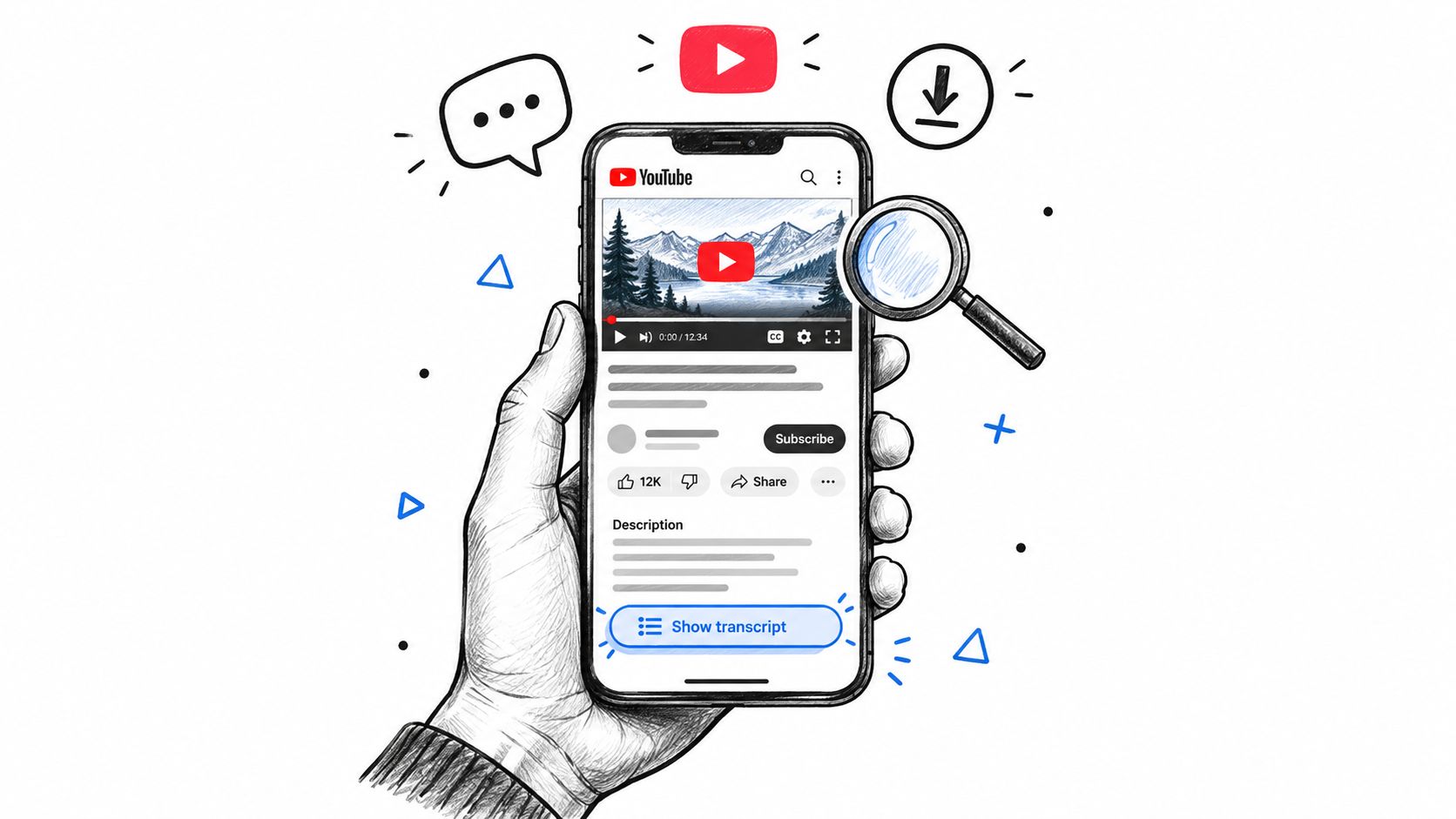
Desktop workflow
- Open the video. Use the standard watch page rather than an embedded player when possible.
- Expand the description area. Look for the Show transcript option, sometimes located in the menu beneath the video or inside the expanded description.
- Open the transcript panel. You'll see caption segments, usually paired with timestamps.
- Search the text. If the panel provides a search field, enter a distinctive word or phrase. Search works better with uncommon terms than with broad words such as “video” or “people.”
- Toggle timestamps. Use the transcript panel's options to show or hide timing, depending on whether you're reading or preparing notes.
- Copy carefully. Select the text, copy it, and paste it into a plain-text editor first. This helps remove unwanted page formatting before you move it into a document.
The transcript typically follows playback and lets you click a segment to jump to that point in the video. That makes the native panel useful for checking a quote, locating a topic, or creating rough notes with time references.
On mobile, the exact placement can vary by YouTube app version and device. Open the video description or the additional-options menu, then look for Show transcript. If the option isn't visible, try the browser version of YouTube, expand the description, or use a dedicated transcript viewer such as use ClipCreator for transcripts. For a separate walkthrough of the native and alternative workflows, see this YouTube transcript access guide.
When the transcript isn't available
A missing transcript doesn't always mean the video contains no speech. Captions may be unavailable because the creator disabled them, automatic caption processing hasn't completed, the spoken language isn't supported for that video, or the audio is difficult for speech recognition to interpret. Private, restricted, or otherwise inaccessible videos can also limit what third-party viewers can retrieve.
Key takeaway: Start with YouTube's own panel for a one-off task. If there's no transcript, check caption availability and try another access method, but don't assume a different viewer can recover text that YouTube never generated or made available.
Browser Extensions and Online Viewers Compared
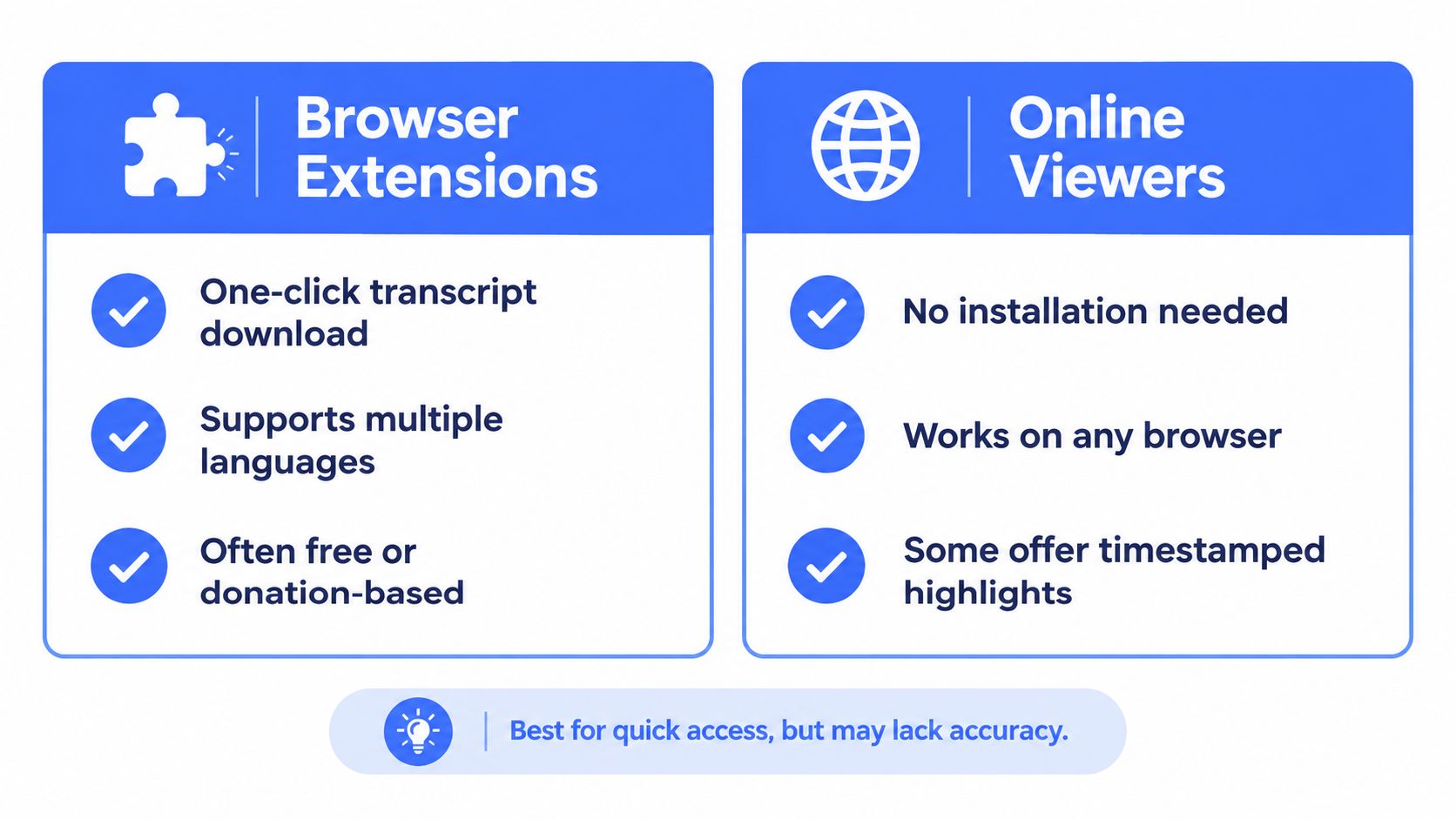
Third-party viewers become useful when the native panel creates too much friction. A browser extension can place transcript controls beside the video, while an online viewer usually asks you to paste a YouTube URL into a separate page.
Extensions suit repeat viewers. If you take notes from videos every day, keeping the controls near the player can save repeated navigation. Some extensions also preserve timestamps, create summaries, or offer download controls, but permissions deserve attention. An extension may be able to read pages you visit, so review its publisher, requested access, update history, and privacy terms before installing it.
Online viewers work better for a one-off job or a computer where you can't install software. They're also convenient when you want a simple copy or text download without changing your browser. The trade-off is that you're sending a video URL to another service, and the result may depend on that service's availability, language handling, and formatting choices.
Choosing a Transcript Viewer Method
| Method | Best For | Timestamps | Export Options |
|---|---|---|---|
| YouTube transcript panel | Immediate reading and searching | Usually available in the panel | Manual copy |
| Browser extension | Repeated note-taking on YouTube | Depends on the extension | Often copy or download |
| Online viewer | One-off extraction without installation | Varies by service | Often plain text, with other formats on some tools |
| API | Automated and bulk workflows | Structured timing may be available | JSON or application-specific formats |
A tool such as LinkShip video to link tool can fit workflows where the useful output is a shareable video reference rather than a transcript alone. For transcript-specific extraction and developer-oriented options, review the YouTube transcript tool before choosing a service.
No viewer should be judged by convenience alone. Check whether it preserves timestamps, whether you can export without losing line order, and whether it handles the language you need. Also consider whether you're comfortable submitting a public video URL to a third-party service.
Extracting Transcripts at Scale With an API
Manual copying breaks down when the same task repeats across a channel, a competitor set, or a research archive. An API turns transcript retrieval into a request your application can schedule, store, inspect, and pass to another system.
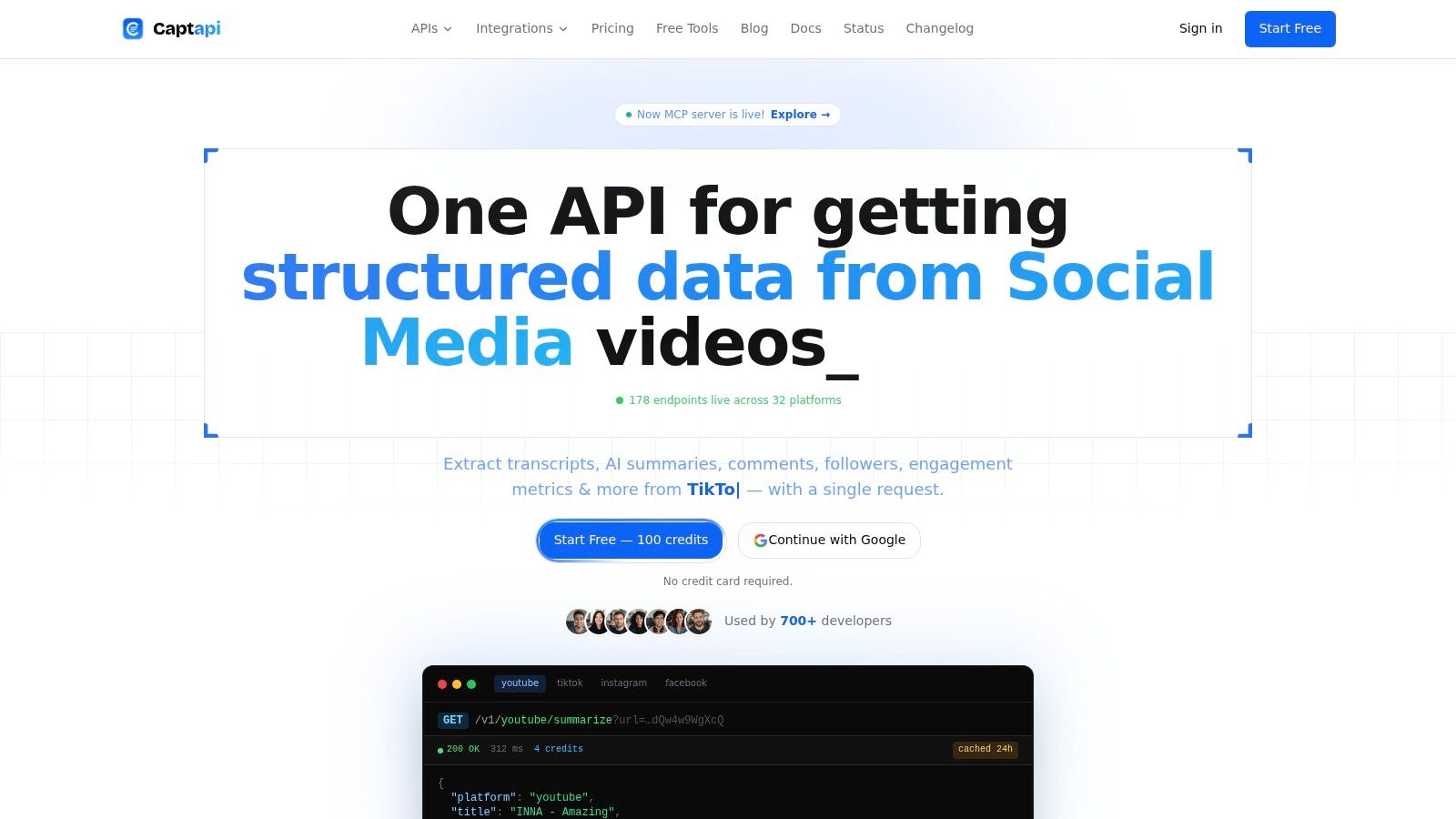
Captapi presents a developer-first Social Media Data API with 34 endpoints, including YouTube transcript and summary endpoints. Its documented workflow doesn't require OAuth for these public-data requests. The practical advantage is control: your script can preserve timestamps, attach the source video ID, retry failed jobs, and send the returned text into a search index or RAG pipeline.
A practical extraction flow
- Create an account and copy the API key. Keep the key in an environment variable rather than placing it in application code.
- Send the video URL or identifier to the YouTube transcript endpoint.
- Store the raw response unchanged. Keep the original segments before cleaning or summarizing.
- Normalize the output. Convert segments into the format your application expects, such as JSON records containing text and start time.
- Run a separate cleanup pass. Don't overwrite the source transcript when correcting punctuation, speaker turns, or terminology.
- Add review rules. Flag short, noisy, multilingual, or multi-speaker videos for additional checking.
The transcript endpoint is appropriate when you need the full text. A summarize endpoint is more suitable when your application needs a compact representation for browsing or triage. For broader design considerations around YouTube data integrations, consult this Mallary.ai YouTube API guide, then compare the implementation details in the Captapi YouTube Transcript API documentation.
Where APIs outperform viewers
An API makes sense when a person shouldn't have to open every video. Examples include monitoring new uploads, preparing transcripts for semantic search, generating chapter drafts, comparing recurring topics, or feeding video text into question-answering software.
It also makes the workflow reproducible. A manual viewer may give you useful text today, but a script can record the request, preserve the response, apply the same cleaning rules, and report which videos failed. Captapi describes a 24-hour shared cache for repeated requests, which can reduce unnecessary repeat retrievals in workflows that revisit the same public video.
The API doesn't remove the need for judgment. It removes repetitive clicking. You still need to respect access permissions, copyright, privacy, and the quality limits of automatic captions.
Tips for Timestamps Captions and Cleaner Transcripts
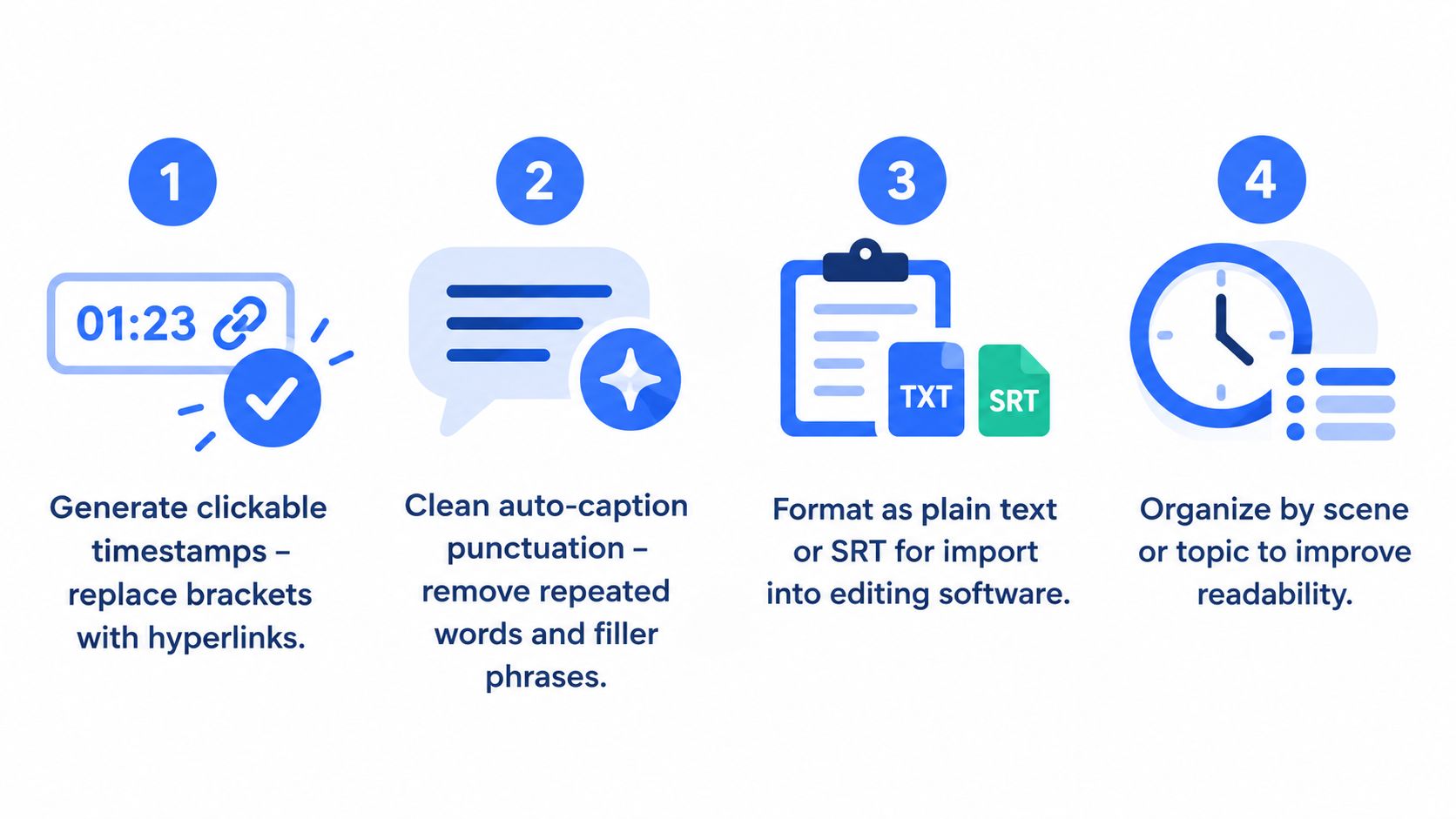
Raw transcript text is rarely the final deliverable. A useful output keeps the connection between words and video time, makes the text readable, and clearly separates machine-generated content from reviewed content.
Start by preserving every segment's timing before editing. If you merge lines too early, you may create smoother prose but lose the ability to point readers to the exact discussion. For notes, keep a timestamp beside each topic. For published captions, format the timing for the caption standard your editor accepts.
Clean for the output, not for appearance
A readable transcript needs sentence boundaries, paragraph breaks, and sensible segmentation. Search and replace can handle repeated spaces, obvious duplicated words, and common filler phrases, but automated cleanup shouldn't alter technical terms or the speaker's meaning.
YouTube auto-captions had a median word error rate of 9.9% in one 2026 analysis, meaning approximately 90% of words were transcribed correctly, yet 20% of captions had no sentence-ending punctuation and 32% had no commas, as reported in this YouTube auto-caption accuracy analysis. Those structural problems matter because a transcript can contain mostly correct words and still be difficult to skim, quote, parse, or pass into natural-language processing.
Use a separate review list:
- Terminology: Check names, product terms, acronyms, and domain-specific vocabulary against the audio.
- Segmentation: Join fragments that form one sentence and split long runs where the speaker changes topic.
- Speakers: Add labels manually when an interview, panel, or conversation has multiple voices.
- Sound context: Add relevant descriptions when producing accessibility captions, rather than treating a bare word transcript as complete captions.
- Language: Verify the detected language and avoid translating before correcting obvious recognition errors.
Independent 2026 testing placed YouTube auto-captions around 85% to 95% accuracy on clear speech, but roughly 60% to 75% when music, noise, accents, or multiple speakers interfered. The same testing notes that these captions don't meet a 99% accessibility standard, so human review remains necessary for production-grade transcripts.
Build a review gate
For casual notes, you may only need to verify names and the sentence you plan to quote. For academic or legal work, listen to the source around every important passage and preserve the original timestamp. For public accessibility, review the complete caption track, including punctuation, speaker changes, and meaningful non-speech audio.
A practical transcript pipeline often has four saved versions: raw extraction, cleaned text, timestamped notes, and final captions or export. This keeps convenience edits from contaminating the evidence you may later need to audit. For a concrete formatting reference, see this video transcript example.
Choosing the Right Viewer for Your Workflow
Choose the lightest method that still protects the quality of your result.
- You need one quote now: Use YouTube's transcript panel, search for the phrase, click the matching timestamp, and verify the audio before publishing.
- You're studying or taking notes: Use the native panel or an extension that keeps timestamps visible. Save topic headings beside the time markers.
- You're repurposing content: Export the transcript, preserve the raw copy, then clean punctuation, remove speech clutter, and review names before drafting posts or chapters.
- You're processing many videos: Use an API so your application can retrieve, store, and transform transcripts consistently. The YouTube transcript extractor guide provides another workflow reference.
- You're publishing for accessibility or conducting formal research: Don't rely on the viewer's text as final evidence. Check the audio, speaker structure, punctuation, and relevant sound information.
The most important distinction is between word accuracy and usable structure. YouTube's caption history shows enormous scale and broad language coverage, while recent testing shows why a transcript can still fail a serious workflow. A fast viewer is valuable for discovery. A reviewed transcript is what you need when readers, researchers, or viewers must be able to trust every line.
Captapi provides programmatic access to public YouTube transcripts and related social data through a consistent API, so you can preserve timestamped text and connect it to RAG, research, or content workflows. Visit Captapi, create an account, copy your API key, and test transcript extraction on a video you already need to process.