
Optimal YouTube Thumbnail Size: 1280x720 Recommended
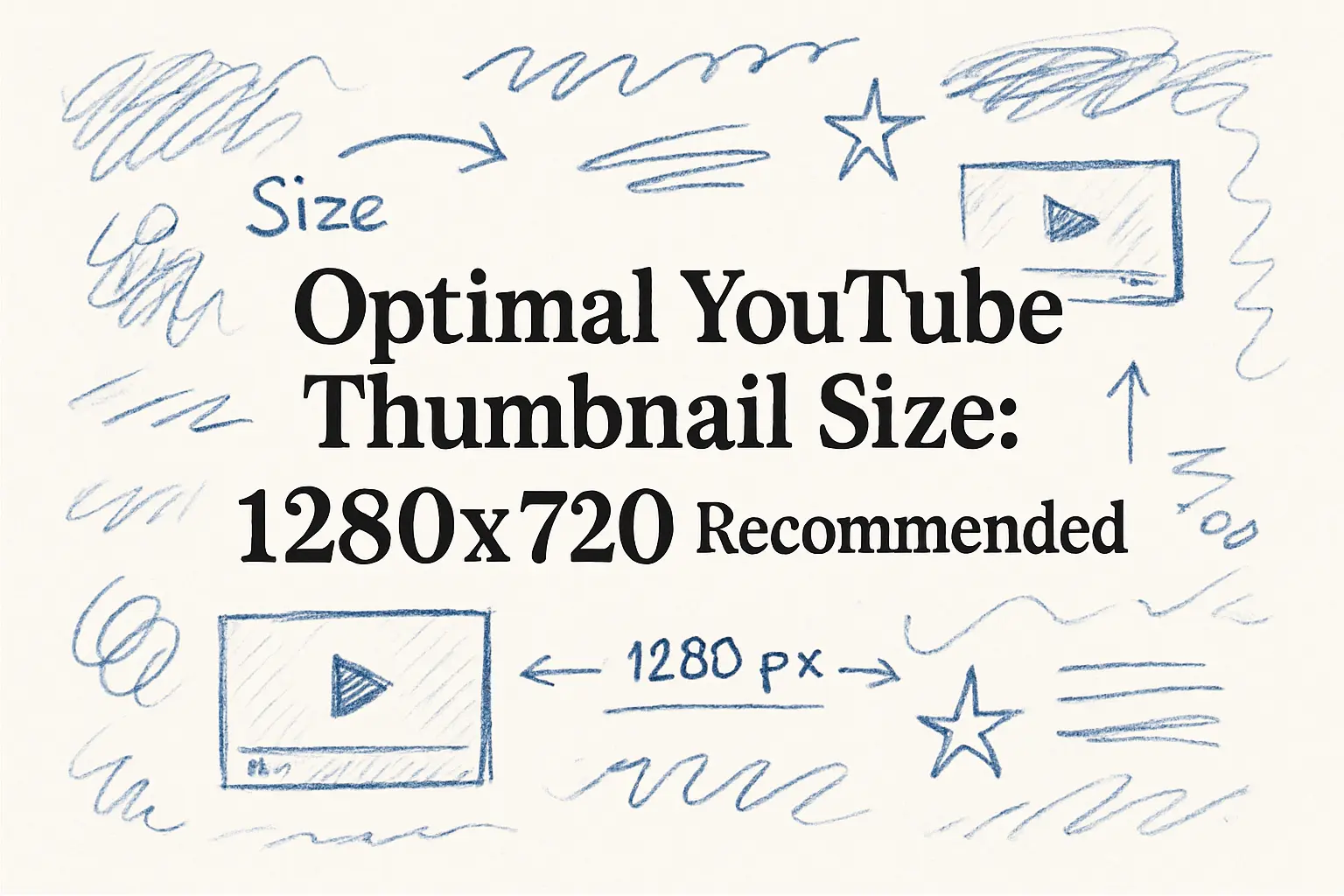
Recommended YouTube Thumbnail Size
The recommended size for YouTube thumbnails is 1280x720 pixels. This resolution provides a 16:9 aspect ratio, which is standard for high-definition videos. Such an aspect ratio ensures that your thumbnail looks its best across various devices, from desktops to mobile screens. Maintaining a 16:9 ratio is crucial, as it matches YouTube's video player and optimizes the preview experience.
While thumbnails are displayed at smaller sizes on the platform, starting with a 1280x720 resolution helps maintain image clarity. YouTube recommends uploading thumbnails with a width of at least 640 pixels, but using the full 1280-pixel width ensures higher quality and detail retention, especially when viewers switch to full-screen mode or when your thumbnail is shared in contexts where a larger image is used.
Creating thumbnails that adhere to these specifications can enhance visibility and engagement. YouTube thumbnails are one of the first elements a viewer notices, significantly impacting click-through rates. Therefore, ensuring that your thumbnails are sharp and visually appealing at any size, while following the recommended 1280x720 dimensions, is essential for attracting viewers.
- Resolution: 1280x720 pixels
- Aspect Ratio: 16:9
- Minimum Width: 640 pixels
- Preferred Format: JPG, GIF, BMP, or PNG
By adhering to these guidelines, content creators can guarantee their thumbnails are properly displayed and effective in capturing audience attention across the platform's various viewing environments.

Common Aspect Ratios for Thumbnails
When designing thumbnails for YouTube videos, selecting the appropriate aspect ratio is crucial for ensuring that images display correctly across various devices. The most frequently used aspect ratio for YouTube thumbnails is 16:9, which aligns with standard widescreen formats. This ratio is ideal for most devices, including desktops and smartphones, offering a consistent viewing experience.
Another common aspect ratio is 4:3. While not as widely used as 16:9, it serves specific purposes, such as compatibility with older displays and certain platforms where retro or square frames are needed. In addition to these, 1:1 (square) is sometimes employed for thumbnails intended for cross-platform sharing on social media, providing a uniform look when shared on Instagram or Facebook.
For creators targeting platforms that still support older content types, a 3:2 aspect ratio might be considered. Though less common today, it is often used in digital photography, making it suitable for repurposing still images as video thumbnails. Each of these aspect ratios has its pros and cons, dependent on the intended use and platform compatibility.
For more information on selecting the proper dimensions and ensuring the best quality, check out Captapi’s recommended YouTube thumbnail sizes by visiting our tool page.
| Aspect Ratio | Use Case |
|---|---|
| 16:9 | Widescreen standard, most YouTube videos |
| 4:3 | Older displays, specific platform requirements |
| 1:1 | Social media sharing (Instagram, Facebook) |
| 3:2 | Photography, specialized uses in video |
Why 1280x720 is Recommended
The recommended resolution for YouTube thumbnails is 1280x720 pixels. This dimension ensures optimal display across various screen sizes and platforms where YouTube is accessed. Maintaining a 16:9 aspect ratio, 1280x720 is the standard resolution for high-definition videos, providing a seamless visual experience that complements the content it represents. Even though the video player may scale the thumbnail, starting with this resolution guarantees that the image retains its clarity and detail.
Using a 1280x720 thumbnail helps the content stand out, attracting more clicks and engagement. High-resolution images are particularly important for visibility on larger displays, such as televisions or desktop screens. When thumbnails are too small or low quality, they can appear blurry or pixelated, which may detract from the video's appeal and discourage users from clicking.
- Clear details on large displays
- Maintains aspect ratio for high-definition content
- Enhances visual appeal and engagement
Moreover, these dimensions align with YouTube's internal requirements and prevent any cropping or improper scaling issues. Creating thumbnails that adhere to this guideline is straightforward using various tools, such as this YouTube thumbnail maker, designed to simplify the creation process and ensure compatibility.
While it is essential to keep the resolution high, it is equally important to consider the file size and format. Compressing images efficiently without sacrificing quality ensures quick loading times and meets platform specifications. This balance between resolution and file optimization plays a crucial role in delivering effective and engaging video previews. Overall, following the 1280x720 recommendation maximizes the potential for thumbnail success.
Uploading Thumbnail Images
To upload a custom thumbnail image for your YouTube video, ensure that the image meets specific criteria. YouTube's recommended thumbnail size is 1280x720 pixels, with a minimum width of 640 pixels. The ideal aspect ratio is 16:9, commonly used in YouTube players and previews. Ensure your file is in either .JPG, .GIF, or .PNG format, and keep the file size under the 2MB limit.
Before you upload, verify your YouTube account if you haven't already. To do this, go to your YouTube Studio dashboard and navigate to the Customization section. Click on Verification and complete the necessary steps. Account verification is required to use custom thumbnails.
Once verified, you can upload a thumbnail directly during the video upload process. On the Details screen of the video upload interface, you'll see an Upload Thumbnail button. Click this button to select your file and upload it to the platform. If a thumbnail is not uploaded during the initial video upload, you can always add or change it later by editing the video in the YouTube Studio.
- Visit the YouTube Studio.
- Select Content from the left sidebar.
- Click on the video you want to edit.
- In the Video Details section, click on the Upload Thumbnail button.
- Select and upload your image.
- Remember to save changes.
By adhering to these guidelines, you can ensure your thumbnails are uploaded correctly and effectively contribute to your video's visibility and engagement on YouTube.

Supported Image File Types and Sizes
When uploading custom thumbnails to YouTube, it's crucial to adhere to the platform's file type and size requirements to ensure optimal display and functionality without errors. YouTube supports a limited range of image file formats specifically optimized for web use, including JPEG, GIF, PNG, and BMP. These formats are widely compatible across digital platforms, providing flexibility for creators in designing thumbnails.
File size is another important consideration, as YouTube sets a maximum limit of 2MB for thumbnail uploads. Larger file sizes can slow down load times or fail to upload entirely, affecting user experience. As such, it is essential to optimize image files to remain under this threshold while maintaining a high-quality visual presentation. Creators can use image editing tools to compress images or adjust their dimensions without significant quality loss, thereby ensuring they meet YouTube's requirements.
Besides adhering to file type and size limitations, it's also recommended to pay attention to the resolution and quality of the thumbnails. High-quality images enhance visual appeal and improve click-through rates by attracting viewers more effectively. Therefore, while staying within the 2MB limit, creators should strive for the best possible quality on supported file types.
- JPEG
- GIF
- PNG
- BMP
By following these guidelines, you ensure your thumbnails meet YouTube's standards and contribute positively to your video's viewership and engagement levels.

Creating a Thumbnail with Python
Creating a YouTube thumbnail programmatically can be done efficiently using Python's libraries. One approach is to utilize the Pillow library for image processing. Below is a basic example that demonstrates how to create a thumbnail of a specific size in Python. First, ensure that you have installed Pillow with pip install Pillow.
In this example, we will create a 1280x720 thumbnail from an existing image:
from PIL import Image

def create_thumbnail(input_image_path, output_image_path, size=(1280, 720)):
    with Image.open(input_image_path) as img:
        img.thumbnail(size)
        img.save(output_image_path)

create_thumbnail('input.jpg', 'thumbnail.jpg')
This script opens an image file named input.jpg, resizes it to fit within the dimensions of 1280x720 while maintaining the aspect ratio, and saves it as thumbnail.jpg.
For those needing to automate processes or integrate with web services, here's an example using a REST API with curl and its Python equivalent:
# Curl example
curl -X POST "https://api.example.com/thumbnail" \
  -H "Content-Type: application/json" \
  -d '{"url": "http://example.com/image.jpg", "size": "1280x720"}'

# Python example with requests
import requests

url = "https://api.example.com/thumbnail"
payload = {"url": "http://example.com/image.jpg", "size": "1280x720"}
headers = {"Content-Type": "application/json"}

response = requests.post(url, json=payload, headers=headers)
print(response.json())
The JSON response might look like this:
{
  "success": true,
  "thumbnail_url": "https://example.com/generated-thumbnail.jpg"
}
Frequently asked questions
Is 1920x1080 a valid size for YouTube thumbnails?
1920x1080 pixels is not a standard size for YouTube thumbnails. The recommended resolution for YouTube thumbnails is 1280x720 pixels. This size ensures a sharp image display across devices while keeping file size manageable.
What is the ideal YouTube thumbnail size in inches?
Since screen resolutions vary, YouTube thumbnail sizes are generally specified in pixels rather than inches. The recommended pixel size of 1280x720 converts approximately to 17.78x10 inches at 72 PPI, which is standard for web graphics.
Can I use a PNG file for my YouTube thumbnail?
Yes, you can use a PNG file for your YouTube thumbnail. YouTube supports both JPG and PNG formats for thumbnails. PNG files can be advantageous if you require transparency or higher image quality for text and graphics.
What are the best practices for designing a YouTube thumbnail?
To design an effective YouTube thumbnail, ensure it is visually compelling and relevant to your content. Use high-contrast colors and readable fonts. Including a concise title or keywords can attract viewers, and keep critical elements away from the bottom-right corner, where the timestamp appears.