
What Video Formats Does YouTube Support in 2026

YouTube accepts 16 upload formats, but only one delivery format is recommended: MP4 with H.264 video and AAC-LC audio. The distinction matters because an accepted file can still create slower processing, avoidable compatibility issues, or a less predictable transcode.
YouTube's supported list is unusually broad. It includes familiar camera and editing exports, legacy wrappers, professional mezzanine files, and modern high-efficiency formats. That flexibility is useful when you're uploading an archive or handing off footage from another editor, but it doesn't mean every accepted format is equally sensible for a final upload.
Table of Contents
- The Quick Answer on YouTube Supported Formats
- All 16 Formats YouTube Accepts at Upload
- How Video Codecs Affect What YouTube Does Next
- MP4, MOV, AVI, and WebM Compared
- Resolution, Framerate, and Bitrate Ceiling
- YouTube Shorts and Vertical Video Format Choices in 2026
- Export Settings for Premiere, DaVinci Resolve, and Final Cut
- Fixing Common Upload and Transcode Errors
- File Size Limits, Duration Caps, and Verification
- Quick Reference Card for Creators
- Why This Matters for Captapi and Social Data Pipelines
The Quick Answer on YouTube Supported Formats
YouTube's official upload documentation lists 16 supported file formats, while its encoding guidance recommends MP4 containing H.264 video and AAC-LC audio. The recommended audio setup is stereo at 48 kHz, giving creators a practical delivery target instead of merely a list of files that the ingest system can open. You can verify the accepted extensions in YouTube's official supported upload troubleshooter and the recommended encoding path in YouTube's encoding specifications.
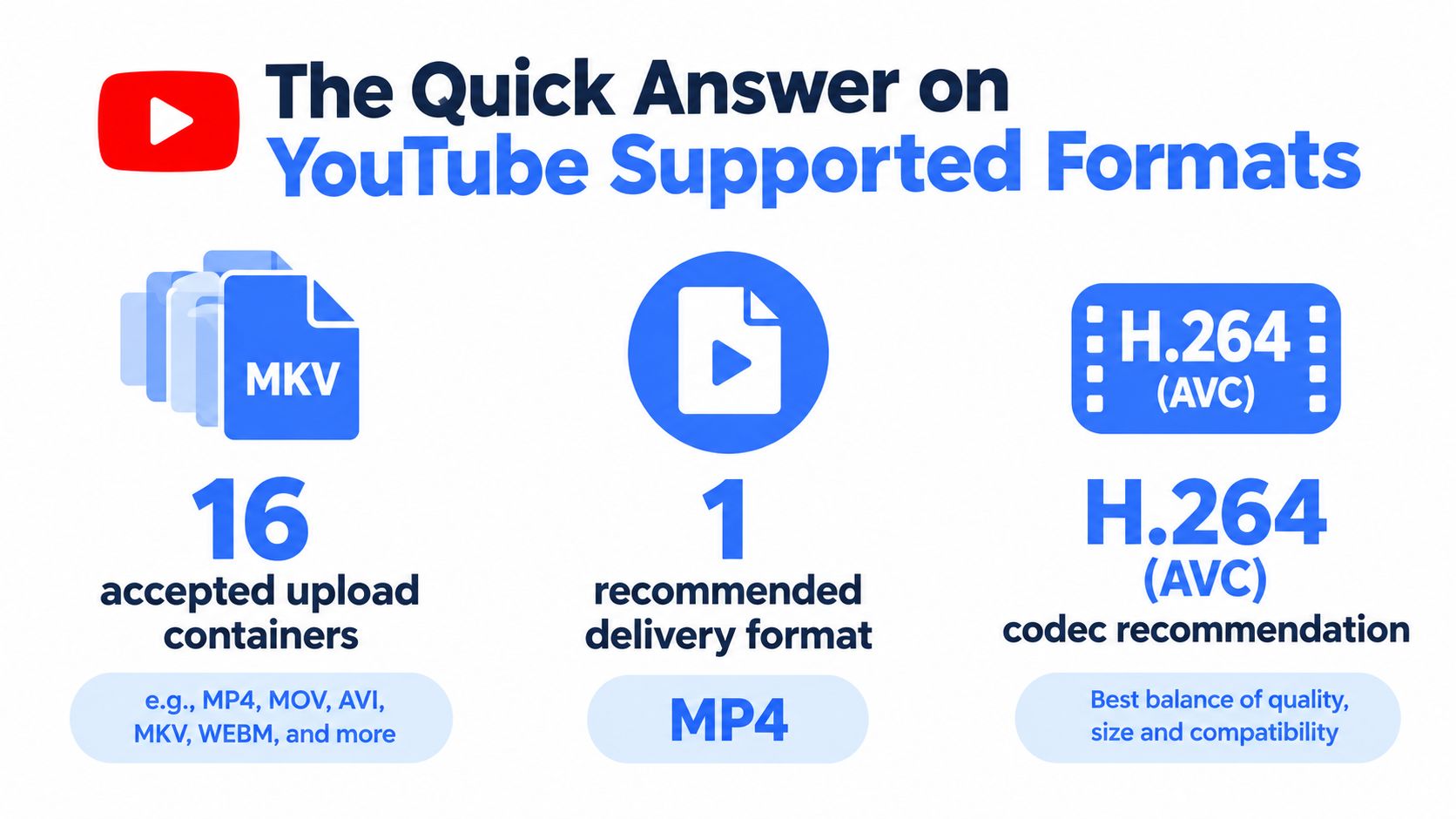
Accepted means YouTube can ingest the file. Recommended means the file is a sensible handoff for a reliable delivery workflow. YouTube will process uploads into playback renditions, so a ProRes master, WebM source, or HEVC file will not remain untouched because the platform accepts it. The service still analyzes the container, decodes the source, and creates versions for playback.
MP4 with H.264 and AAC-LC is the safest default because it combines broad compatibility with a predictable structure. Avoid edit lists in the MP4, use a standard color space, and make sure the audio track is supported. That approach reduces the number of variables before YouTube begins processing.
The full list is useful when you're dealing with source footage, but the practical question is narrower: which format should you export for this upload? For most long-form videos, tutorials, interviews, and social clips, use a clean MP4. Shorts and vertical workflows need the same codec discipline, but their dimensions and delivery context change the export decision.
All 16 Formats YouTube Accepts at Upload
YouTube's official list includes .MOV, .MPEG-1, .MPEG-2, .MPEG4, .MP4, .MPG, .AVI, .WMV, .MPEGPS, .FLV, 3GPP, WebM, DNxHR, ProRes, CineForm, and HEVC (H.265). A second official help page confirms that YouTube can also accept fallback exports such as WMV, AVI, MOV, and FLV when a preferred encoding isn't available. Check YouTube's upload encoding guidance before treating an extension as a guarantee, because the codec and audio stream inside the container still matter.
Rather than memorizing a flat list, group the formats by the workflow that usually produces them:
| Format bucket | Containers | Codecs typically used | How YouTube processes it |
|---|---|---|---|
| Consumer delivery | MP4, MPEG4, MOV, MPG | H.264, MPEG-4, AAC or other supported audio | Usually decoded and normalized into YouTube playback renditions |
| Professional finishing | ProRes, DNxHR, CineForm | Intra-frame editing codecs, often paired with PCM audio | Accepted as source or mezzanine material, then re-encoded for delivery |
| Legacy and streaming-era | AVI, WMV, FLV, 3GPP, MPEGPS | Older MPEG, WMV, Flash-era, or camera codecs | Parsed and converted, with more opportunity for slow processing or artifacts |
| Modern and transport-oriented | WebM, HEVC, MTS, M2TS, TS | VP9, HEVC, MPEG transport streams | Demuxed or decoded, then mapped to YouTube's playback pipeline |
The important correction is that a container isn't a codec. MOV can hold H.264, ProRes, or PCM. MP4 can hold H.264, HEVC, or unsupported combinations. A file can therefore have an accepted extension and still fail because its video, audio, profile, metadata, or edit structure falls outside the ingest matrix.
Professional formats make sense when the file is a high-quality master that you don't want to alter before archiving or handing to another editor. They aren't automatically better delivery files. For broader background on choosing containers for browser delivery, RenderIO's guide to best video formats for web is a useful companion, although YouTube's ingest requirements are distinct from direct browser playback.
How Video Codecs Affect What YouTube Does Next
Codec choice determines how much work YouTube must do after upload. H.264, also called AVC, is the baseline because it plays reliably across editing systems, browsers, phones, televisions, and capture workflows. YouTube's official recommendation is MP4 with H.264 video and AAC-LC audio, which makes that combination the lowest-risk route when speed and predictable processing matter.
HEVC, or H.265, is useful when the source already comes from a modern phone or camera, particularly for high-resolution or HDR material. It can store comparable visual quality more efficiently than H.264, but that efficiency shifts work into decoding and transcoding. If your editor exports a clean HEVC MP4 or MOV, YouTube can ingest it. If your goal is to publish quickly, converting it to the recommended H.264 delivery format is usually easier to troubleshoot.
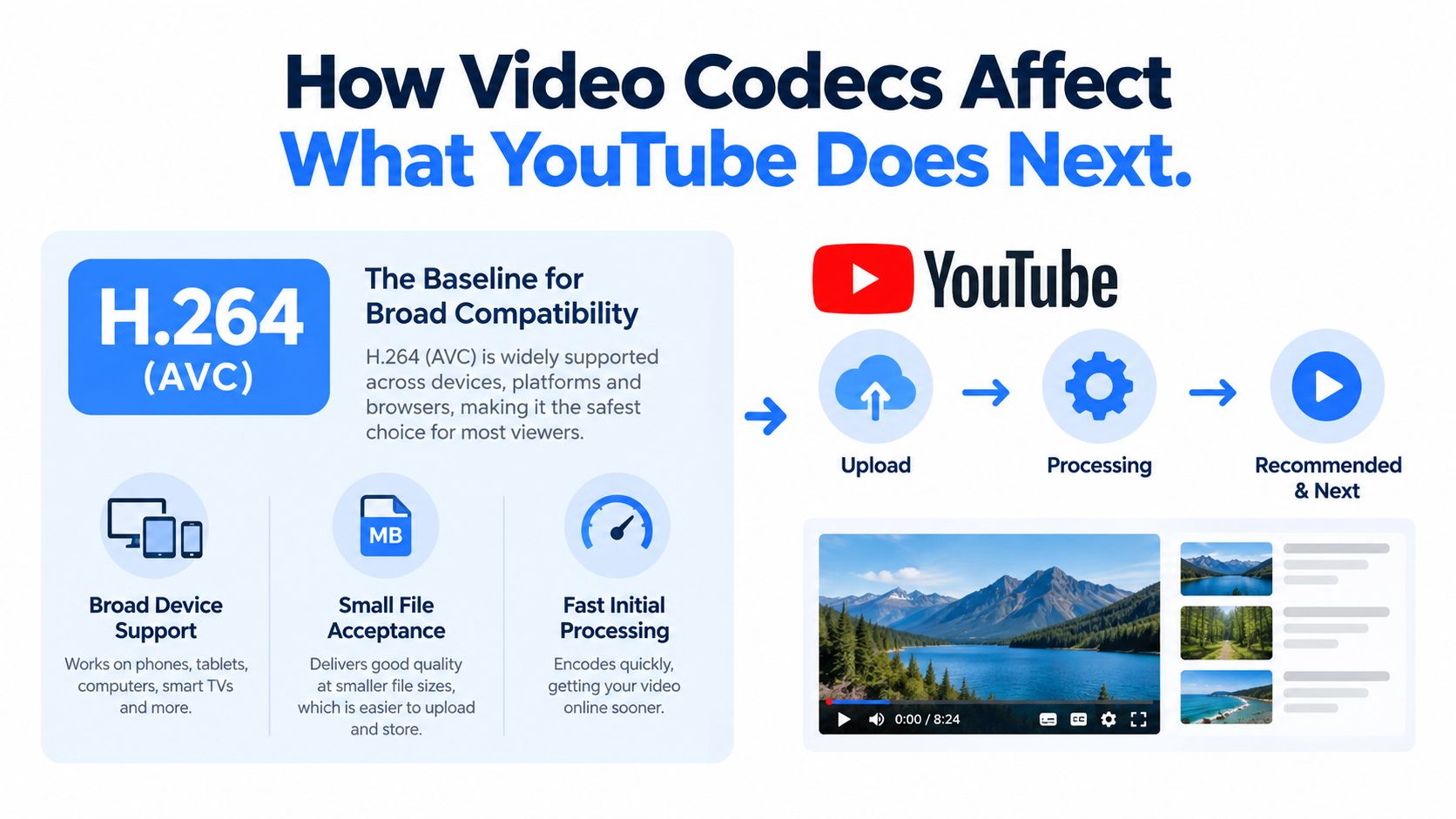
VP9 and AV1 are normally YouTube-side playback codecs, not the formats most creators need to upload. YouTube generates efficient playback renditions from the uploaded source, so exporting a file in a codec the platform will generate later can create a redundant step rather than a quality advantage. The same logic applies to ProRes and DNxHR. They preserve editing flexibility and withstand repeated timeline work, but YouTube still needs to convert them into consumer playback versions.
Practical rule: Upload H.264 when reliability is the priority, HEVC when the source is already native and high-efficiency, and ProRes or DNxHR only when your finishing workflow requires a mezzanine export.
For teams analyzing videos after publication, codec consistency also helps downstream systems interpret timestamps and audio tracks. A separate video content analysis workflow can then work from stable media and metadata rather than repeatedly normalizing unusual source files.
MP4, MOV, AVI, and WebM Compared
The choice between MP4, MOV, AVI, and WebM usually takes less than a minute once you identify where the file came from. Start with the codec pair, not the extension. A clean MP4 with H.264 video and AAC-LC audio is the practical default, while the other containers become situational choices.
| Container | Typical codec pairing | Upload behavior | Best use case |
|---|---|---|---|
| MP4 | H.264 and AAC-LC | Predictable ingest and broad compatibility | Final delivery from Premiere, Resolve, or most export tools |
| MOV | H.264, HEVC, ProRes, PCM or AAC | Usually accepted, but structure and audio vary widely | Apple-native workflows and professional masters |
| AVI | Older MPEG, DV, or other legacy codecs | Accepted in many cases, but can process less predictably | Legacy cameras, screen captures, or inherited archives |
| WebM | VP8 or VP9 with supported audio | Works, but may be converted again for YouTube playback | Native VP9 sources or workflows already built around WebM |
MP4 is the delivery choice. Its common H.264 and AAC pairing fits YouTube's recommended ingest path, and the file generally travels cleanly through mobile and desktop processing. MOV is fine when Final Cut Pro or a camera has already produced it, especially if the file contains HEVC or ProRes that you need to preserve until upload.
AVI deserves caution. YouTube may accept it, but the wrapper often comes from older software or capture hardware, and the internal codec can be a problem. You can see longer processing, unexpected audio behavior, or visible softness after conversion. Re-exporting to MP4 is usually more efficient than repeatedly retrying an old AVI.
WebM is different from the other alternatives because YouTube commonly creates WebM playback renditions for viewers. Uploading a native VP9 file can still be reasonable when you already have a high-quality source, but exporting WebM solely because YouTube serves it back doesn't remove the platform's processing step.
If a MOV file is too large for your upload workflow, a practical guide to compress MOV training videos can help you reduce the source before creating the final YouTube export.
Resolution, Framerate, and Bitrate Ceiling
YouTube supports many resolutions and frame rates, but the ingest acceptance list is not the same as a delivery recommendation. Export from the source dimensions and the intended viewing context. Upscaling a small camera file creates a larger file, not new detail.
Bitrate should match resolution, motion, and dynamic range. A high bitrate cannot restore detail already lost in the source, while an oversized master increases upload and processing time without guaranteeing a sharper result. Preserve the source frame rate unless you have a specific reason to change it.
A practical bitrate reference
The following ladder follows the recommended values in the encoding specifications linked earlier.
| Resolution | Frame rate | SDR bitrate | HDR bitrate |
|---|---|---|---|
| 1080p | Standard frame rate | 8 Mbps | Not specified in the provided guidance |
| 1080p | High frame rate | 35 to 45 Mbps | Not specified in the provided guidance |
| 4K | Standard frame rate | 53 to 68 Mbps | 66 to 85 Mbps |
| 8K | Source-dependent | Use source and encoder judgment | Use source and encoder judgment |
High frame rates suit sports, gameplay, and slow-motion footage, but they give the encoder more motion information to preserve. That usually means a higher bitrate is appropriate. The right ceiling depends on how quickly the image changes, not only on the frame size.
HDR also requires consistent color metadata and a suitable transfer function. If the project lacks a managed HDR workflow, export Rec. 709 SDR rather than uploading footage with unclear HDR flags. Incorrect metadata can produce washed-out or unexpectedly dark playback after YouTube creates its delivery versions.
For routine uploads, a clean H.264 MP4 with matching audio and the source frame rate preserved is a dependable master. Review the exported file in MediaInfo before uploading. Check frame rate, pixel dimensions, codec, color profile, and audio sampling settings, particularly after an NLE export. This separates an ingest problem from a file that YouTube can accept but must process poorly.
YouTube Shorts and Vertical Video Format Choices in 2026
Current Shorts guidance for 2026 treats the format question as part of a vertical-video workflow. Recent guides describe Shorts as supporting vertical uploads of up to 3 minutes, while the official accepted upload extensions remain broad. The practical export decision is still MP4 with H.264 or HEVC video and AAC audio, but the frame geometry now matters as much as the wrapper.
Phones often record HEVC by default. That isn't automatically a problem. A properly structured HEVC file in MP4 or MOV can pass through YouTube's ingest system, while an H.264 export remains the safer choice if you're moving footage between several editors or troubleshooting an upload error.
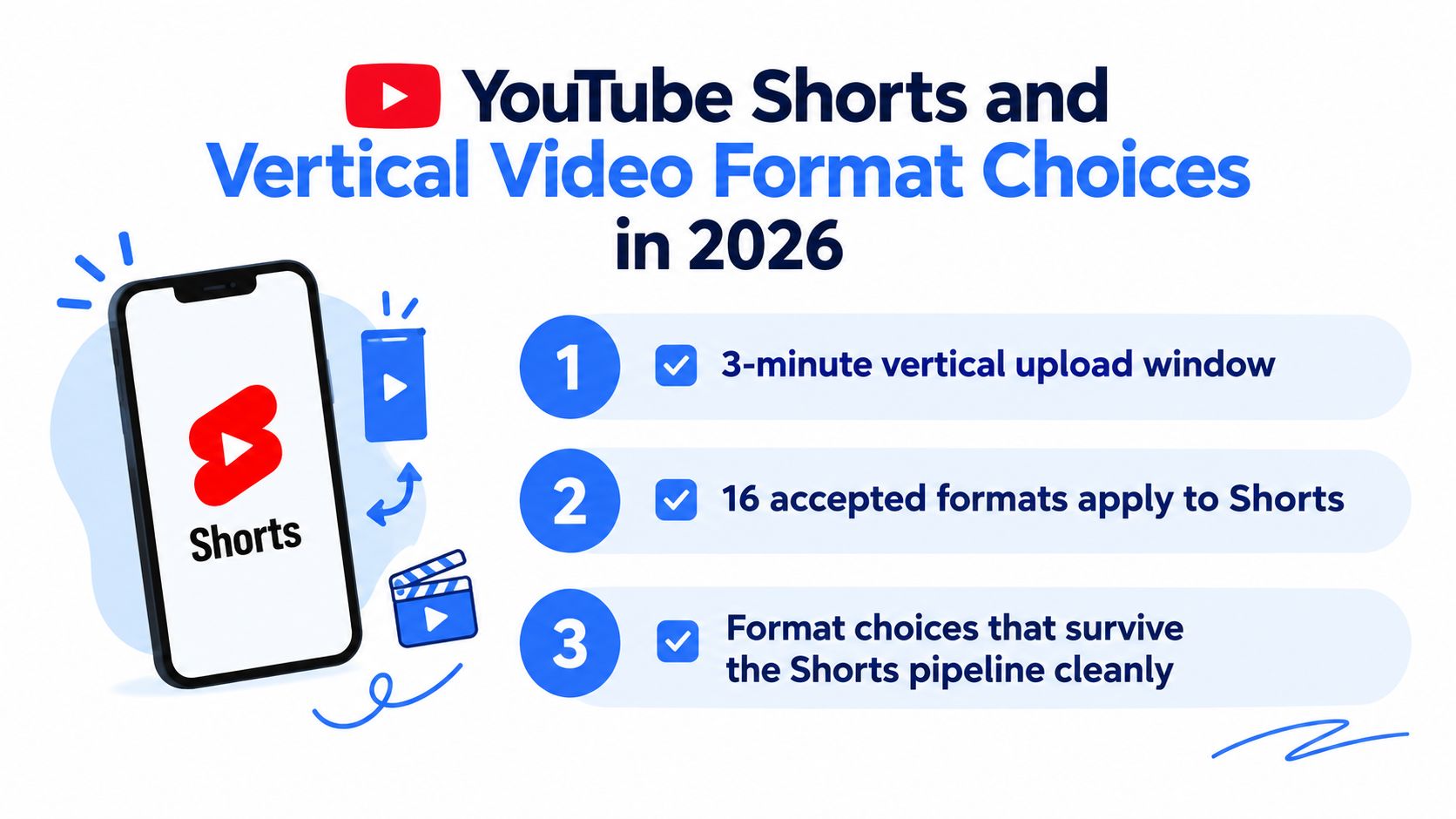
For a mobile-first export, use a 9:16 master at 1080 by 1920, preserve the source frame rate, and keep the audio in AAC-LC. Avoid treating square or 4:5 files as interchangeable with a true vertical master. YouTube can display them, but they don't give you the same control over framing in the Shorts feed.
Vertical video exposes bad metadata quickly. Check orientation, pixel dimensions, frame rate, and color flags before you blame the platform for a crop or a washed-out image.
Creators building repeatable Shorts workflows can use the AIMVG guide to YouTube Shorts alongside an export preset, rather than changing settings manually for every clip. For developers collecting public Shorts data, Captapi's YouTube channel Shorts endpoint can support a separate metadata workflow after publication.
Export Settings for Premiere, DaVinci Resolve, and Final Cut
The cleanest export is usually the one that removes ambiguity. Select H.264 video, AAC audio, a standard color space, and a normal progressive file structure. The three major editing applications expose those controls differently, but the outcome should be similar.
Premiere Pro
In Export, choose H.264 and start with Match Source. For a 1080p project, keep the target within a sensible delivery range, and use a higher target for 4K when the image contains detailed motion. Set AAC audio, stereo, 48 kHz, and a bitrate appropriate to the source. VBR one-pass is a practical choice when you need a reliable export without an extended analysis pass.
DaVinci Resolve
In the Deliver page, use the YouTube preset as a starting point, then confirm the container, codec, resolution, and audio settings rather than trusting every project default. Select H.264 for a general delivery file, AAC stereo audio at 48 kHz, and disable burn-in timecode unless the video specifically needs it. Keep color management intentional, especially if the timeline contains HDR clips.
Final Cut Pro
Use Share, Export File, and choose an H.264 output when you need a delivery master. Confirm the project resolution, select better quality where available, and use AAC audio. Final Cut may preserve chapter markers in the exported file, but YouTube's own metadata and description settings determine how viewers ultimately access the published video.
| Setting | Premiere Pro | DaVinci Resolve | Final Cut Pro |
|---|---|---|---|
| Container | MP4 | MP4 | MP4 or H.264 export |
| Video codec | H.264 | H.264 | H.264 |
| Audio | AAC, stereo, 48 kHz | AAC, stereo, 48 kHz | AAC, stereo, 48 kHz |
| Structure | Progressive, no edit lists | Progressive, no unusual flags | Standard export structure |
| Color | Rec. 709 unless delivering managed HDR | Managed timeline output | Match project color intentionally |
Don't add embedded LUTs, odd metadata, or unnecessary overlays to a delivery file. If a screen recorder or phone creates an edit list, rewrap or re-export before uploading. For teams that need captions after publishing, an auto-captions workflow benefits from stable audio and timestamps.
Fixing Common Upload and Transcode Errors
Most upload failures become easier once you inspect the streams instead of staring at the filename. MediaInfo is a useful first check because it shows the actual video codec, audio codec, sample rate, profile, frame rate, and container metadata.
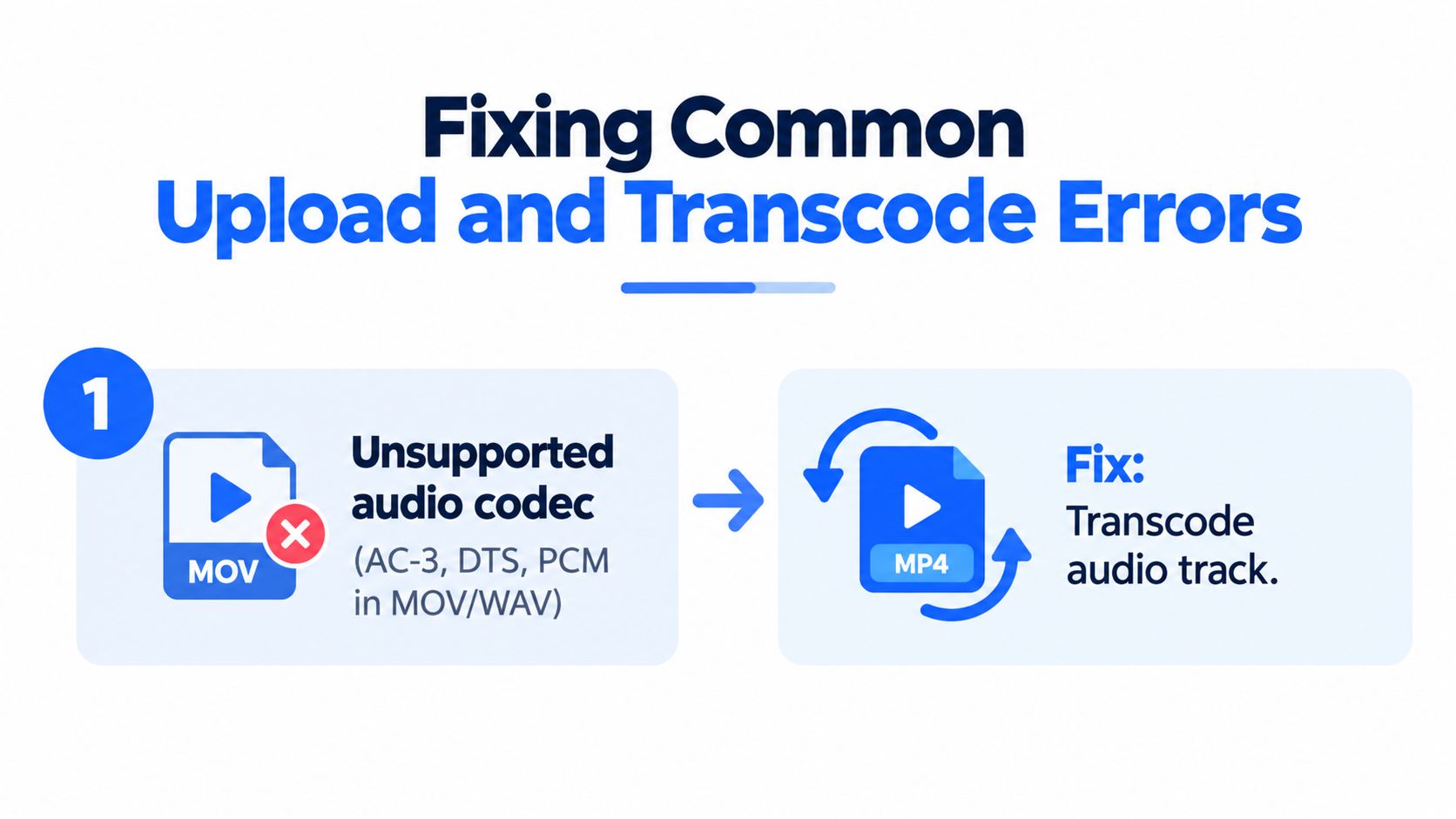
Unsupported audio codec
A MOV or AVI file may contain AC-3, DTS, or PCM audio even when the video stream is perfectly acceptable. YouTube then rejects the audio path, not necessarily the picture. Replace the audio track with AAC-LC stereo at 48 kHz, then export a new MP4 rather than renaming the original file.
Edit list not supported
Some phone apps and screen recorders create edit lists that describe how the file should be presented. YouTube's encoder may struggle with that metadata. Rewrap the file without changing the streams when the structure is otherwise sound, or re-encode through Premiere, Resolve, or Final Cut if the rewrap doesn't remove the error.
Wrong color space
HDR footage with PQ or HLG metadata can trigger a warning when the project and export flags disagree. If you intended an SDR upload, convert the timeline to Rec. 709 in Resolve Color Management or use the appropriate color-management controls in Premiere. Don't change the label while leaving the transfer characteristics untouched, because that can produce washed-out highlights or crushed shadows.
After fixing the source, inspect the new file again. Uploading the same broken asset repeatedly only gives the same ingest process the same problem.
File Size Limits, Duration Caps, and Verification
Account status affects how much video you can submit, so long-form and archive teams should verify the channel before scheduling a release. YouTube's current official limit is 12 hours or 256 GB, whichever comes first, for verified accounts. Its help documentation also describes a 15-minute maximum for unverified uploads, while larger files and longer videos require verification.
| Limit | Unverified account | Verified account | 8K note |
|---|---|---|---|
| Maximum duration | 15 minutes | 12 hours, subject to the size ceiling | The same overall file ceiling still matters |
| Maximum file size | Lower account limit applies | 256 GB | 8K files still must remain within the platform ceiling |
| Upload access | Standard upload capability | Longer uploads after verification | High-resolution files need more planning |
| Processing | Depends on source and queue | Depends on source and queue | Large masters can take longer to validate and transcode |
The two limits work together. A file below the size ceiling can still fail because it exceeds the duration allowance, and a long recording can hit the size ceiling before it reaches the duration limit. Verification doesn't make an unsupported codec acceptable, either.
For content teams, this is also a scheduling issue. A high-resolution source takes more processing work than a compact H.264 delivery file, so leave room between upload and publication rather than uploading at the last possible moment. If you're building a research workflow around duration filtering, a YouTube video search by length workflow can help separate short clips from longer source material before analysis.
Quick Reference Card for Creators
Use this as an export checklist, not as a substitute for inspecting the actual file. The extension tells you what wrapper the file uses. MediaInfo tells you whether the streams inside it are likely to behave properly.
| Container | Video codec | Audio | Max resolution | Best use case |
|---|---|---|---|---|
| MP4 | H.264 | AAC-LC, stereo, 48 kHz | Up to the source and account-supported ceiling | Default delivery for long-form and Shorts |
| MP4 | HEVC | AAC-LC | High-resolution or HDR source workflows | Phone-native footage and efficient camera exports |
| MOV | H.264, HEVC, or ProRes | AAC, PCM, or supported audio | High-resolution masters and Apple workflows | Final Cut projects or source preservation |
| WebM | VP9 | Supported WebM audio | Source-dependent | Native VP9 files already prepared for web use |
| AVI | Legacy or source-dependent codec | Varies | Source-dependent | Inherited archives or older capture systems |
| ProRes or DNxHR wrapper | ProRes or DNxHR | Often PCM | High-resolution finishing source | Professional master upload when re-export isn't practical |
For most creators, the first row is enough. Choose HEVC when the original footage is already HEVC and conversion would add an unnecessary generation of encoding. Choose ProRes or DNxHR when the file is a finishing master and you accept that YouTube will normalize it for playback.
For vertical publishing, add the geometry check: confirm a 9:16 frame, correct orientation metadata, and a frame rate that matches the edit. For long-form publishing, confirm the audio track and color space before you start the upload.
Why This Matters for Captapi and Social Data Pipelines
Format selection affects more than the viewer's first playback. It also affects the reliability of the data that teams extract afterward. A stable MP4 with H.264 video and AAC-LC audio gives downstream systems a predictable source for timestamp alignment, caption generation, transcript segmentation, and media checks.
Professional sources such as ProRes and DNxHR remain useful for editing and archival work, but they can require additional normalization before analysis. WebM and HEVC can also be valid inputs, yet a consistent delivery profile makes it easier to compare files across channels, creators, and publishing tools.
That matters when a marketing or machine-learning pipeline needs to connect a video's audio with its title, description, comments, chapters, or engagement metadata. Captapi provides a developer-facing YouTube Data API workflow for extracting public YouTube data, including transcript and metadata-related information. The cleaner the media and timestamp structure entering your process, the fewer exceptions your captioning, search, and video QA jobs need to handle.
Export MP4 with H.264 and AAC-LC for routine delivery. Keep HEVC for native phone and HDR workflows, and reserve ProRes or DNxHR for cases where the master itself is the important artifact. That simple separation between ingest compatibility and delivery suitability prevents most format problems before YouTube sees the file.
Captapi provides a unified social media data API for YouTube and other major platforms, including transcript, summary, comments, search, and engagement endpoints that can feed captioning, RAG, QA, and research workflows. If your team needs dependable metadata and transcript extraction after publishing clean video files, visit Captapi to review the available endpoints and start building.