
Optimal Twitch Banner Size for All Devices
Optimal Twitch Banner Size
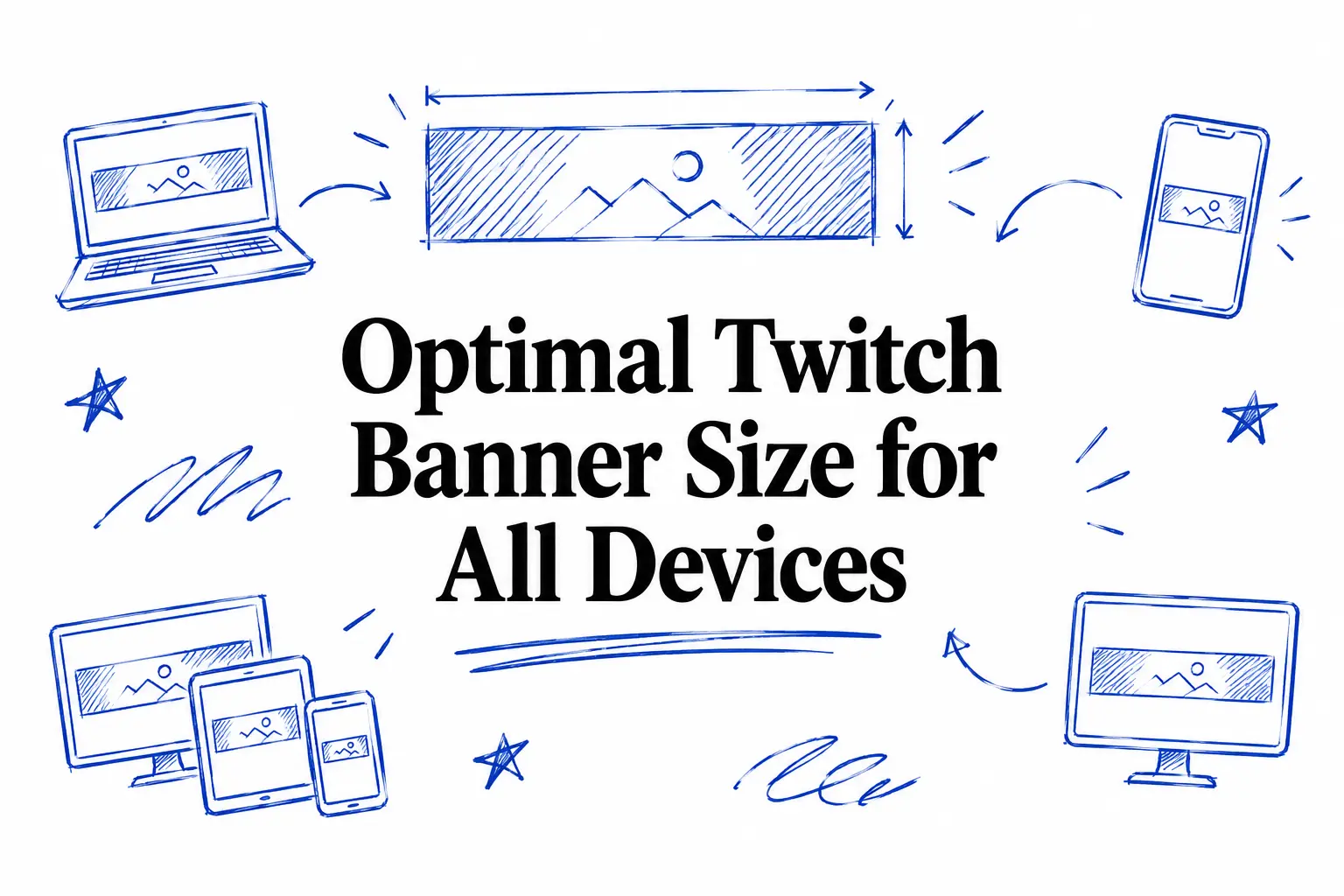
The optimal size for a Twitch banner, also known as a profile banner, is 1200 x 480 pixels. This size ensures that your banner displays correctly across various devices, including desktops, tablets, and smartphones. It provides a balanced aspect ratio that maintains the visual integrity of your design when scaled or resized.
Twitch banners serve as a visual identifier for your channel and are positioned prominently at the top of your Twitch page. Because of this, clarity and resolution are critical. The recommended 1200 x 480 pixel size provides a high-resolution display that looks great on high-definition screens while being flexible enough to conform to smaller displays without losing quality.
- Minimum size: 1200 x 480 pixels
- Aspect ratio: 5:2
- File types: JPEG, PNG
- Max file size: 10MB
Adhering to these guidelines ensures that elements like text or logos do not get cut off by automatic cropping on different screen sizes. Additionally, maintaining a 5:2 aspect ratio is crucial for preventing distortion. It is advisable to keep important visual elements such as logos and text within the center area of the banner, as edge areas might be subject to cropping when viewed on smaller screens. By following these specifications, you can create a banner that remains consistent and professional across all devices Twitch viewers might use.
Understanding Aspect Ratios for Twitch Banners
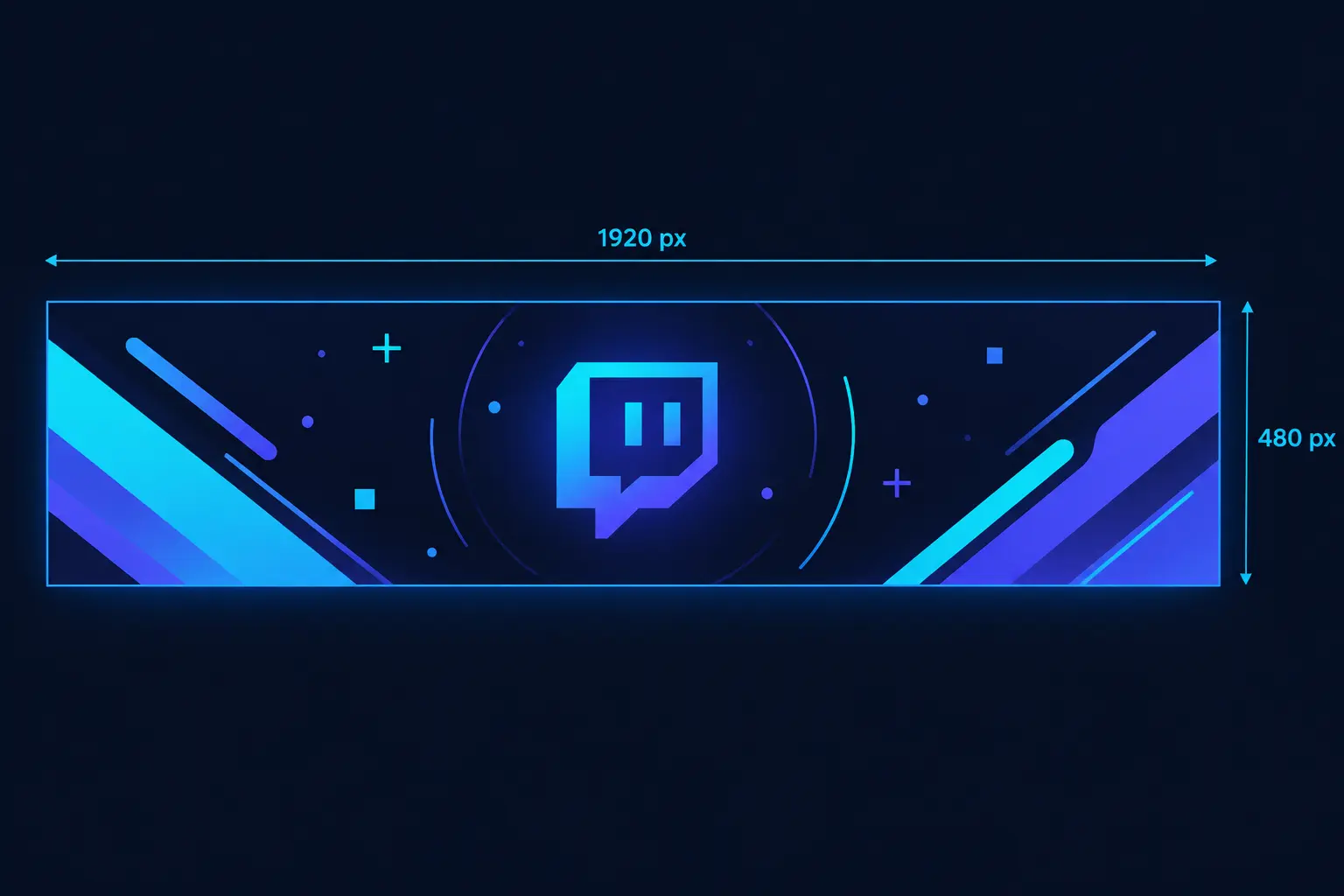
The aspect ratio is a critical element in determining how your Twitch banner will appear across different devices. For Twitch banners, maintaining a 5:2 aspect ratio is essential to ensure that your banner displays as intended on both desktop and mobile interfaces. A banner sized at 1200x480 pixels, for example, follows this ratio and provides a good balance between visual appeal and technological compatibility.
A correct aspect ratio prevents any unwanted cropping or stretching when the banner is resized for display on different screen sizes. Twitch's interface automatically adjusts banner sizes to fit a variety of resolutions. Keeping the aspect ratio consistent means that your graphics and text will remain in proportion, preserving their clarity and visual integrity.
When a banner does not maintain the recommended 5:2 aspect ratio, elements such as logos or text may be misaligned or oddly stretched. This could diminish the professional look you aim for on your Twitch channel. Common issues include pixelation or parts of your design being cut off. It is important to plan your design within this specific ratio, considering the critical elements should remain within the safe zone.
- Ensure all important visuals and text reside within a central region to avoid trimming.
- Test how your banner looks on different devices before finalizing your design.
For additional guidance on creating Twitch banners with the correct sizing, consider this Twitch banner size tool to help you generate banners that fit the platform perfectly.
Device Compatibility for Twitch Banners
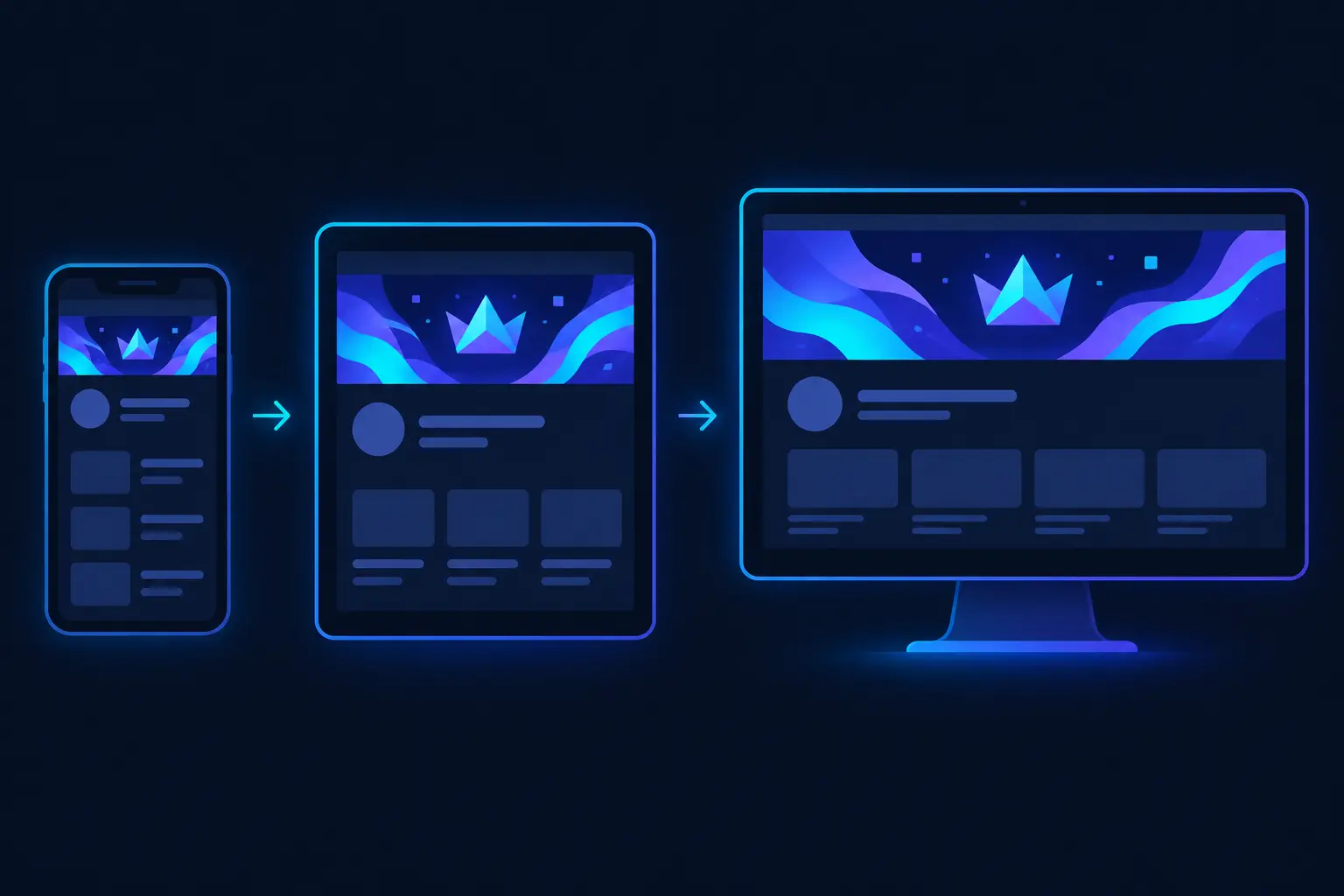
Twitch banners need to be optimized for a variety of devices and screen resolutions to ensure consistent visual appeal. A key point to remember is that Twitch automatically scales banners to fit different screens, which can impact how your banner is displayed. The recommended size for a Twitch banner is 1200x480 pixels, but how it appears can vary across devices due to different resolutions and screen sizes.
While designing your Twitch banner, it's crucial to account for elements like text and critical visuals being obscured when viewed on smaller screens or lower resolutions. Test your design across multiple devices to ensure important elements remain visible and aesthetically pleasing. Adjust these elements using design tools or services to create adaptable images. For instance, you can use resources like the Twitch Emote Resizer to assist with resizing internal elements if needed.
| Device | Resolution | Banner Display |
|---|---|---|
| Desktop | 1920x1080 | Displays full banner with edge-to-edge coverage. |
| Tablet | 1280x800 | Scales down the banner; potential cropping of side elements. |
| Smartphone | 720x1280 | Significant scaling; top and bottom sections may crop. |
| Smart TV | 3840x2160 (4K) | Expands banner fully but may reveal unintended background details. |
| Laptop | 1366x768 | Banners compress to maintain aspect ratio; minimal cropping. |
Understanding these distinctions helps in creating banners that maintain their intended design across various platforms, ensuring consistent branding and messaging. Adaptability in design is crucial for a seamless viewer experience.
Uploading Your Twitch Banner
Uploading a banner to your Twitch channel is a straightforward process that can be completed in a few steps. To start, you need to log in to your Twitch account. Once logged in, hover over your profile icon located in the upper right corner of the screen to reveal the drop-down menu. Select "Creator Dashboard" from this menu to navigate to your channel settings.
Within the Creator Dashboard, look for the "Settings" option located in the menu on the left-hand side. Click on "Settings" and then select "Channel" from the sub-menu that appears. You will be directed to a page with sections like "Profile Settings" and "Brand." Here, locate the "Brand" tab, which manages visual customizations of your channel, including the banner art.
Under the "Brand" section, you'll find the field for "Profile Banner". Click on the "Update" button to proceed with the banner upload. This will open a file dialog where you can browse your computer for the image file you wish to use as your banner. Remember to use an image that matches the optimal dimensions specified by Twitch to avoid any distortion or cropping issues.
After selecting your file, click "Open" to upload it directly to your channel. You might see a preview of how the banner will look on your profile. If everything appears correct, ensure that you click "Save Changes" to finalize the upload. If you need to make any adjustments, you can re-upload the banner by following the same steps.
- Log in to Twitch.
- Navigate to Creator Dashboard > Settings > Channel.
- In the Brand tab, click "Update" under Profile Banner.
- Select your banner file, upload, and save changes.
Sample CSS for Twitch Banner Placement
To ensure your Twitch banner maintains its aspect ratio across different devices, a responsive design approach is essential. CSS provides several methods to handle this requirement, and one effective strategy involves using the object-fit property combined with flexible container dimensions. This approach ensures your banner scales appropriately without distortion. Below is a sample CSS snippet that demonstrates how to manage a Twitch banner's placement and maintain its aspect ratio responsively:
.container {
    width: 100%;
    max-width: 1920px; /* Ensure it doesn't exceed typical desktop widths */
    position: relative;
}

.banner {
    width: 100%;
    height: auto; /* Height adjusts to the width to maintain aspect ratio */
    object-fit: cover; /* Ensures the banner fills the container */
    object-position: center; /* Centers the image within the container */
}
In addition to CSS for ensuring proper visual representation, you may also need to retrieve images from a specific platform like Twitch for programmatic placement. Utilizing a service like Captapi allows for fetching Twitch data efficiently. Below are both curl and Python examples to request Twitch banner data from the API, along with a typical JSON response snippet:
// cURL example
curl -X GET "https://api.captapi.com/twitch/channel/banner" \
-H "Authorization: Bearer your_api_key"

// Python example
import requests

url = "https://api.captapi.com/twitch/channel/banner"
headers = {
    "Authorization": "Bearer your_api_key"
}

response = requests.get(url, headers=headers)
banner_data = response.json()

// JSON response snippet
{
    "url": "https://path.to/your/banner.jpg",
    "width": 1920,
    "height": 480
}
Common Issues With Twitch Banner Sizing
When creating and uploading a Twitch banner, users frequently encounter several issues related to sizing and appearance. One common problem is the incorrect aspect ratio. Twitch recommends a banner size of 1200x480 pixels, but if the aspect ratio deviates from this, the image may be stretched or cropped upon display. This can lead to distorted graphics, which can negatively impact your channel's professional appearance.
Another issue is file size limitations. Twitch allows a maximum file size of 10MB for banners. Large, high-resolution images often exceed this limit, requiring compression that can reduce image quality. Users should aim for a balance between image resolution and file size to maintain visual clarity.
Device compatibility also presents challenges. A banner that looks perfect on a desktop might be misaligned or improperly cropped on mobile devices. This is often due to differences in screen sizes and resolutions. Testing your banner across multiple devices before finalizing can help mitigate these inconsistencies.
- Incorrect dimensions or aspect ratio
- File size exceeds 10MB limit
- Appearance distortion on different devices
Alignment issues can also occur when elements within the banner are too close to the borders, as Twitch's interface may overlay menus or buttons over important parts of your design. Keeping important text and graphics centered can reduce this risk. By understanding and anticipating these common issues, users can create a more visually appealing and consistent Twitch banner experience.
Frequently asked questions
What is the best size for a Twitch banner?
The recommended size for a Twitch banner is 1200x480 pixels. This size ensures that your banner is displayed correctly across different devices. Keeping the file size under 10MB can also help with faster loading times.
Does Twitch support 1920x1080 banner sizes?
Twitch does not officially support 1920x1080 for banners. The platform's recommended size is 1200x480 pixels, and using dimensions that differ may result in improper display or parts of your banner being cut off.
How can I upload a custom banner on Twitch?
To upload a custom banner on Twitch, navigate to your channel page and click on "Edit" in the banner area. This will give you the option to upload an image from your computer. Make sure your image meets the requirements for size and format (PNG, JPEG).
What happens if my Twitch banner doesn't fit?
If your Twitch banner doesn't fit the recommended dimensions, parts of your image may be cropped or distorted. It's crucial to adhere to the specified 1200x480 pixel size to ensure proper display. Adjust your image using any basic image editing software to fit these dimensions before uploading.