
Optimal Instagram Story Size: 1080x1920 Pixels
Optimal Instagram Story Dimensions
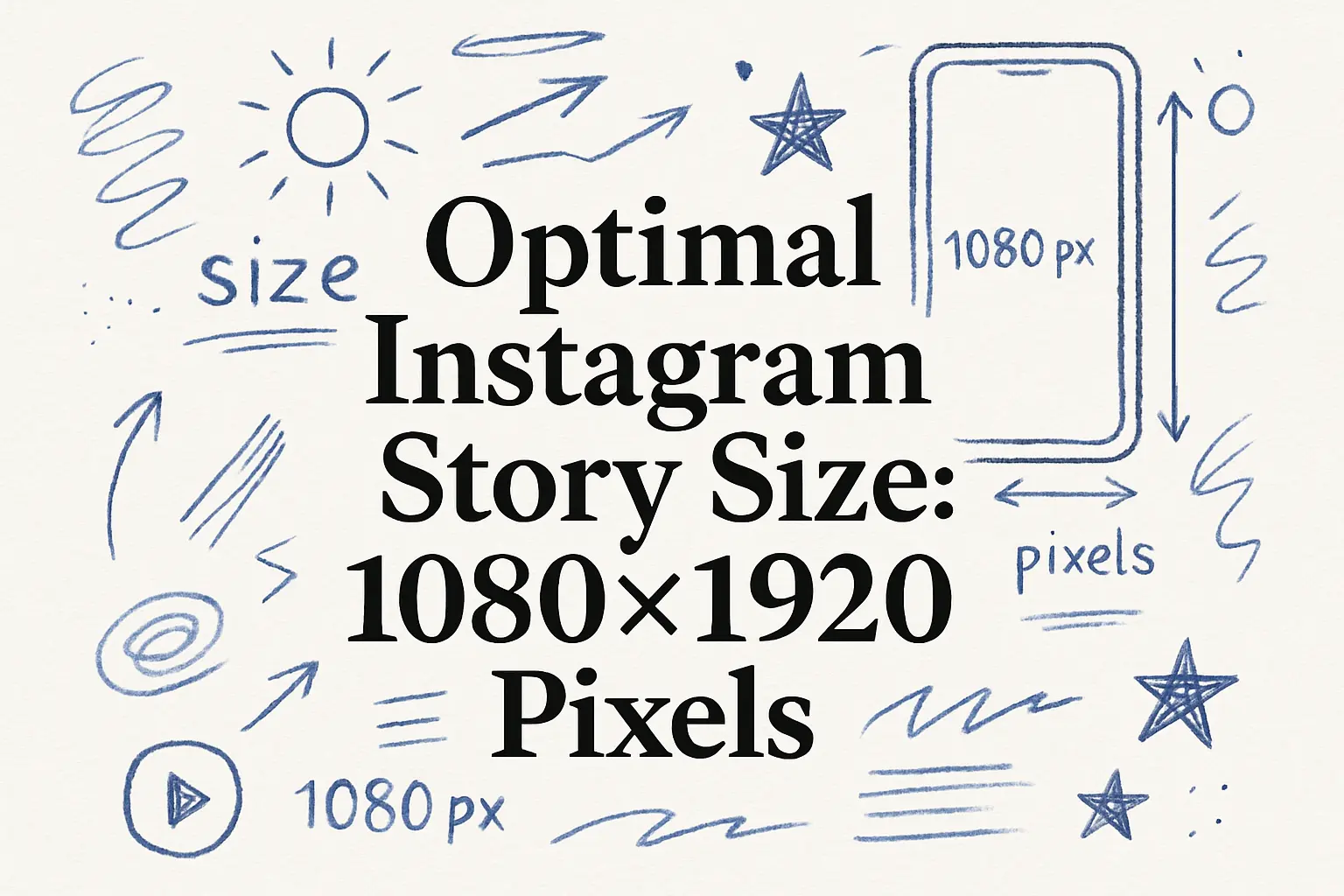
Instagram Stories provide an excellent way to engage users with vertical content that occupies the full screen. To ensure your content displays correctly without any distortions or cropping issues, you must adhere to the recommended dimensions and aspect ratio for Instagram Stories. The optimal size for an Instagram Story is 1080 pixels wide by 1920 pixels tall. This results in a 9:16 aspect ratio, which is the most effective format for vertical videos and images on the platform.
Maintaining these dimensions is crucial because Instagram Stories are designed to fill the entire screen of a typical smartphone. If your image or video does not match the 9:16 aspect ratio, Instagram may automatically crop or resize the content, potentially cutting off important elements.
In terms of file size, Instagram allows a maximum size of 30 MB for images and 4 GB for videos. It is also recommended to use file types such as .jpg or .png for images and .mp4 or .mov for videos to ensure compatibility and quality. Ensuring these specifications will allow for quick uploads and smooth playback within the Instagram app.
- Resolution: 1080x1920 pixels
- Aspect Ratio: 9:16
- Maximum File Sizes: 30 MB for images, 4 GB for videos
- File Types: .jpg, .png (images); .mp4, .mov (videos)
By adhering to the recommended Instagram Story dimensions and specifications, you ensure that your visual content remains crisp, fully visible, and engaging for your audience, maximizing the impact of your storytelling efforts.
Instagram Story Size Specifications
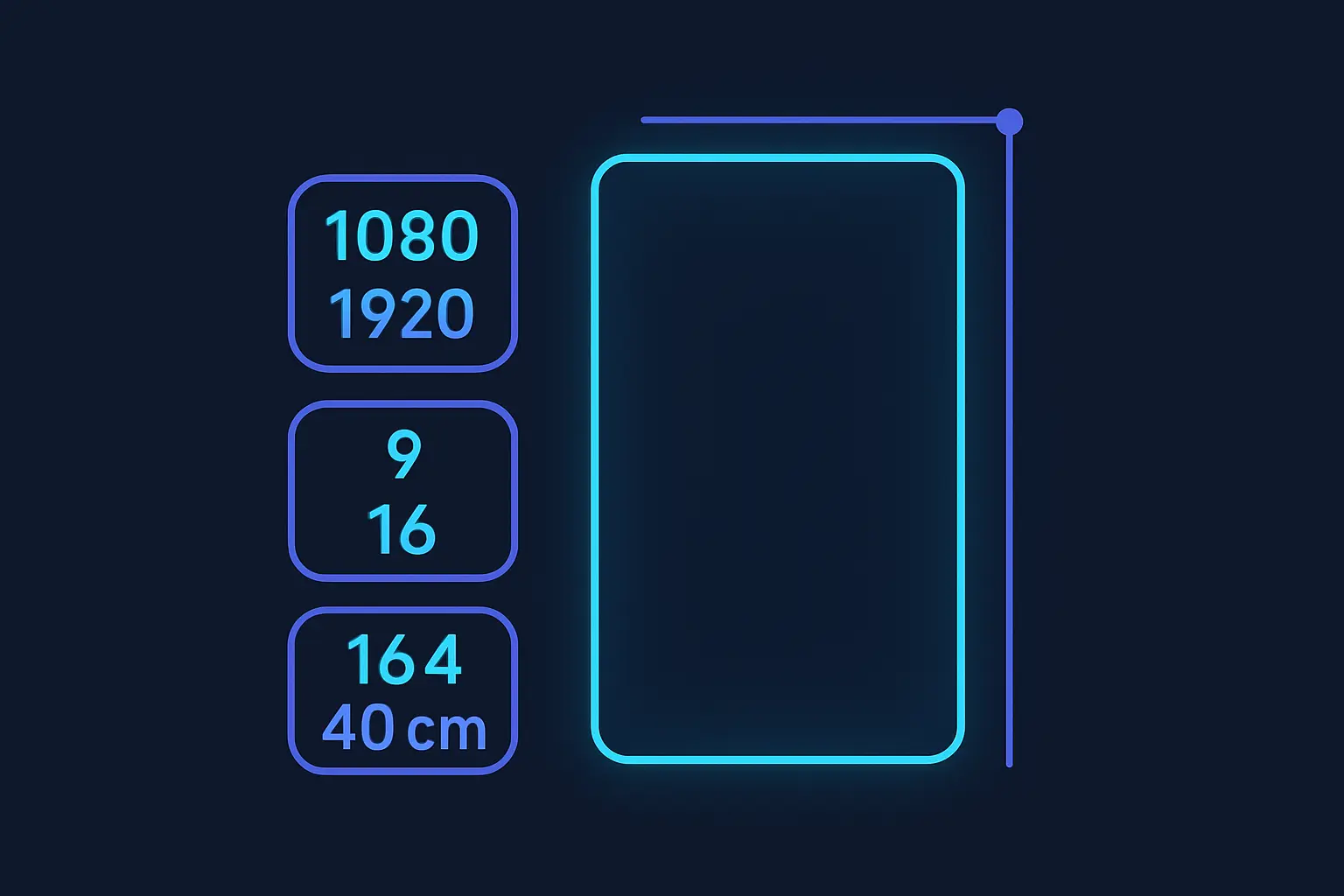
Instagram Stories provide a versatile way to engage your audience, but using the correct dimensions ensures your visuals are sharp and uncluttered. The optimal resolution for an Instagram Story is 1080 pixels wide by 1920 pixels tall, maintaining an aspect ratio of 9:16. This setup guarantees that your content has the highest possible quality on all devices. Additionally, it's crucial to consider the safe zone, which is the central area of your image or video. Avoid placing text and critical elements near the edges to prevent cropping. Bear in mind that Instagram compresses stories, so using PNG files for graphics and JPEGs for photos can maintain quality after uploading.
Captapi's Instagram Story Size tool can assist by resizing images effortlessly, ensuring they fit perfectly. Nonetheless, recognize that Instagram limits the file size for uploads—videos must be under 4GB and images less than 30MB. For videos, the frame rate should not exceed 30fps, and formats like MP4 or MOV are preferred.
| Specification | Details |
|---|---|
| Width | 1080 pixels |
| Height | 1920 pixels |
| Aspect Ratio | 9:16 |
| Video File Size Limit | 4GB |
| Image File Size Limit | 30MB |
| Video Frame Rate | Up to 30fps |
By adhering to these specifications, you can create striking and effective stories that maximize audience engagement. Utilize professional tools to maintain resolution and avoid distortion, which could affect the quality of your content.
Using Python to Resize Images for Instagram Stories
Resizing images to fit Instagram Stories using Python is a straightforward process. The first step involves setting your target dimensions. Instagram recommends a size of 1080 pixels width by 1920 pixels height for Stories. After determining these dimensions, you can utilize the PIL library in Python, which provides tools for image processing.
Below is a minimal example of how to resize an image using Python and the PIL library:
from PIL import Image

def resize_image(input_path, output_path):
    with Image.open(input_path) as img:
        img = img.resize((1080, 1920), Image.ANTIALIAS)
        img.save(output_path)

resize_image('input.jpg', 'output.jpg')
If you prefer to automate this task with a REST API, you could use Captapi to fetch and manipulate social media images. Here’s how to achieve the same outcome using the Captapi API:
# Python: using requests library
import requests

response = requests.post(
    'https://api.captapi.com/resize',
    headers={'Authorization': 'Bearer YOUR_API_KEY'},
    json={'url': 'http://example.com/image.jpg', 'width': 1080, 'height': 1920}
)

print(response.json())

# curl
curl -X POST https://api.captapi.com/resize \
-H 'Authorization: Bearer YOUR_API_KEY' \
-H 'Content-Type: application/json' \
-d '{"url": "http://example.com/image.jpg", "width": 1080, "height": 1920}'
Both methods will effectively resize your images for Instagram Stories. The API approach simplifies batch processing of images. Below is a sample JSON response for a successful resize operation:
{
  "status": "success",
  "image_url": "https://examplecdn.com/resized_image.jpg"
}
Adjusting for Different Units: Inches, cm, mm
When creating content for Instagram Stories, it's often useful to know how to convert pixel dimensions into inches, centimeters, or millimeters, especially if your design tools or print requirements demand it. The standard Instagram Story size is 1080 pixels wide by 1920 pixels tall. To convert these pixel dimensions to physical units, you need to know the resolution, typically measured in pixels per inch (PPI).
The resolution can vary depending on the device, but a common standard for digital displays is 72 PPI. Using this figure, you can perform the following conversions:
- Inches: Divide the pixel value by the PPI (72). For example, 1080 pixels would be approximately 15 inches (1080 ÷ 72), and 1920 pixels would be around 26.67 inches (1920 ÷ 72).
- Centimeters: First, convert pixels to inches as described, then multiply by 2.54 (since 1 inch is equal to 2.54 cm). For example, 15 inches translates to 38.1 cm (15 × 2.54).
- Millimeters: Similar to centimeters, but multiply by 25.4 instead. Continuing with the above example, 15 inches would convert to 381 mm (15 × 25.4).
These conversions are generally sufficient for most design needs, allowing you to adjust your Instagram Story dimensions to fit specific requirements or tools that work in physical measurement units. It’s important to verify the PPI setting of your specific device or application to ensure accuracy in the conversion process.

Avoiding Common Mistakes in Instagram Story Design
To ensure your Instagram stories grab attention without running into design pitfalls, it's crucial to avoid certain common mistakes. A frequent issue many face is the cropping of essential text. Always keep critical text within the "safe zone," which is around 250 pixels to 1080 pixels from both the top and bottom of the screen. This area ensures that text is visible on various device screens without being obstructed by user interface elements such as the profile icon or the swipe-up link.
Another mistake is using low-quality images that become pixelated when viewed on high-resolution displays. Always start with images that are at least 1080 pixels wide, with an aspect ratio of 9:16, to maintain clarity. Overcrowding the design with multiple fonts or colors can also make your story hard to read or visually overwhelming. Stick to no more than two fonts and a cohesive color palette to maintain legibility and aesthetic appeal.
Keep in mind the importance of accessibility. Ensure that text contrast is strong enough for all viewers, including those with visual impairments. Use high-contrast text colors against your background and avoid overly busy backgrounds that could obscure the text.
- Position key elements within the 1080x1920 canvas to avoid undesired cropping.
- Ensure text and graphics are separated adequately to maintain clarity.
- Test visibility on different devices before finalizing designs.
Lastly, while using animations and stickers can make stories more engaging, overusing these elements can distract from the core message. Use them sparingly to complement, rather than overwhelm, your content.
Resizing Images without Cropping
Resizing images for Instagram Stories without cropping can be achieved by ensuring your content fits within the platform's specified 9:16 aspect ratio. This format maximizes the vertical space suitable for mobile viewing while avoiding the loss of any image parts through cropping. Here are a few techniques to resize images correctly:
The simplest approach is to adjust the canvas size of your image to match Instagram's specifications, typically 1080x1920 pixels. Many image editing tools like Photoshop or GIMP allow you to add a solid color or blurred background to fill extra space around your image. This method maintains the image's full content within the desired dimensions, ensuring no crucial elements are cut off.
Another technique involves scaling your image proportionally. Ensure your image maintains its original aspect ratio while resizing it. This process can be done automatically using editing tools' built-in features. Once your image fits either the width or height within the 1080x1920 frame, add padding in the form of margins or borders to occupy the remaining space.
- Use photo editing tools to create consistency by maintaining an aspect ratio of your original content.
- Incorporate background elements to complement the main image when borders or padding are added.
- Consider using online resizing tools which offer a quick solution, applying consistent padding and maintaining image quality.
For users comfortable with programming, Python libraries such as PIL or OpenCV can automate these adjustments. The advantage here is predictable results, especially when processing multiple images for consistent appearances across your Instagram content.
Frequently asked questions
What is the Instagram Story size in pixels?
The standard size for Instagram Stories is 1080 pixels wide by 1920 pixels tall. This is a 9:16 aspect ratio which fills the full screen of most smartphones.
How can I resize an image for Instagram Story without cropping?
To resize an image without cropping, you can use tools like Adobe Photoshop, Canva, or apps like InShot. These tools allow you to adjust the canvas size while maintaining the original image within a 9:16 aspect ratio frame by adding borders or adjusting the background.
What is the aspect ratio for Instagram Stories?
The aspect ratio for Instagram Stories is 9:16. This vertical format is optimized for full-screen viewing on mobile devices.
Can I use inches to set Instagram Story dimensions?
Instagram Story dimensions are typically set in pixels because digital devices display content on screens measured in pixels. However, if you need to convert inches to pixels, consider that pixel dimensions depend on the display resolution (e.g., 96 DPI is common for screens).